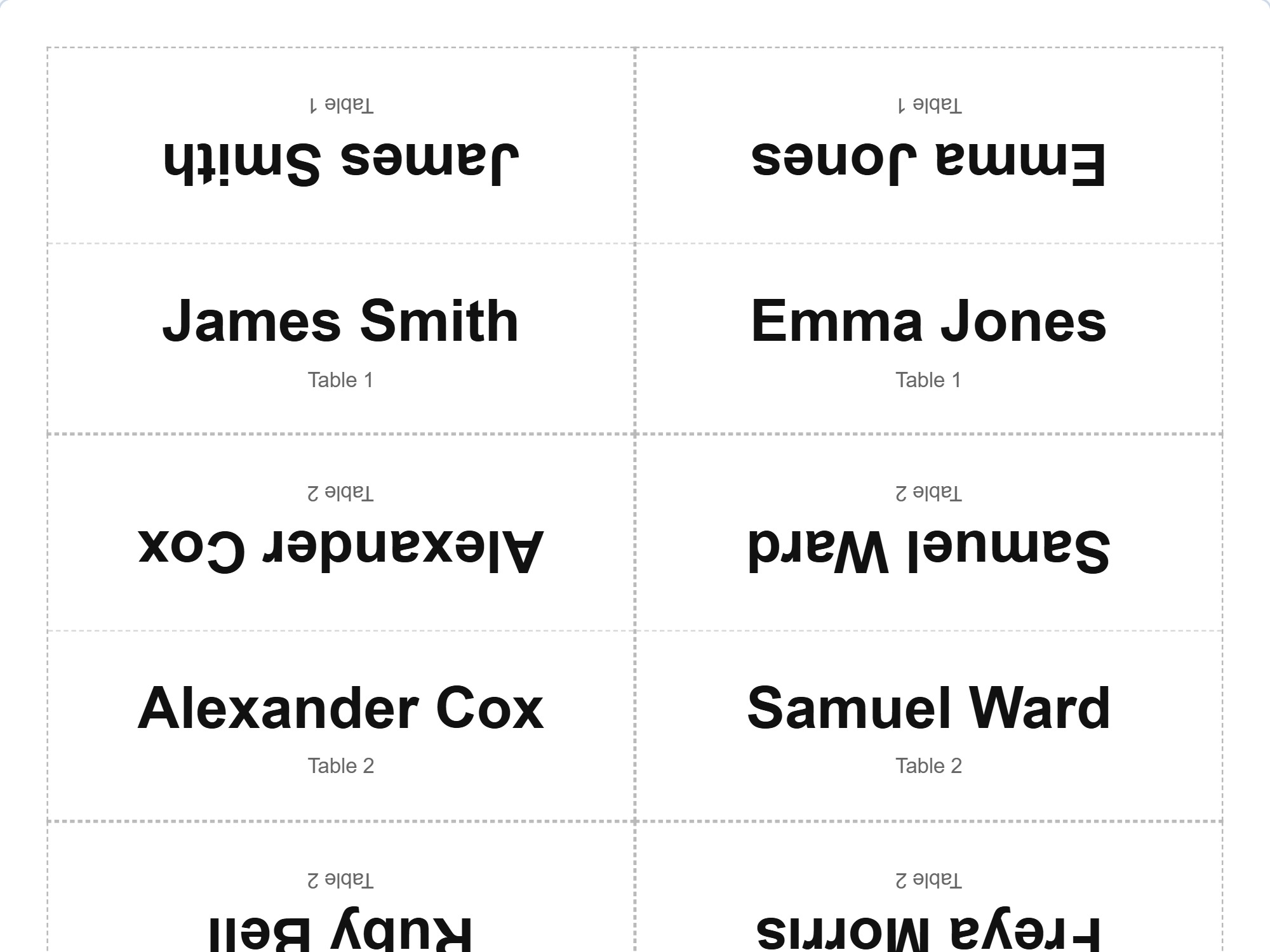
Place cards
Folded cards with the name on both sides — for the person opposite as well. Cut and fold lines ready, so the sheet can go straight to the trimmer.
For the couple
Say once who must not sit at the same table and who belongs together. Seat the guests yourself or let the app do the work. When someone cancels a week before, you mark it and share the rest out again — the locked seats stay where they are.
Runs in the browser on a computer or tablet. Nothing to install, no account to try it.
On a phone you can browse and show a finished seating plan. Building one goes better on a bigger screen. Email this link to myself
A wedding seating plan — the table plan, if that is your word for it — usually gets made more than once. The first version comes early, the second when the replies are in, the third when two people cancel and the fourth when an aunt is promised a seat beside the head table. Every time, the same things have to be remembered again: who gets on together, who is better placed at separate tables, who cannot hear on their left.
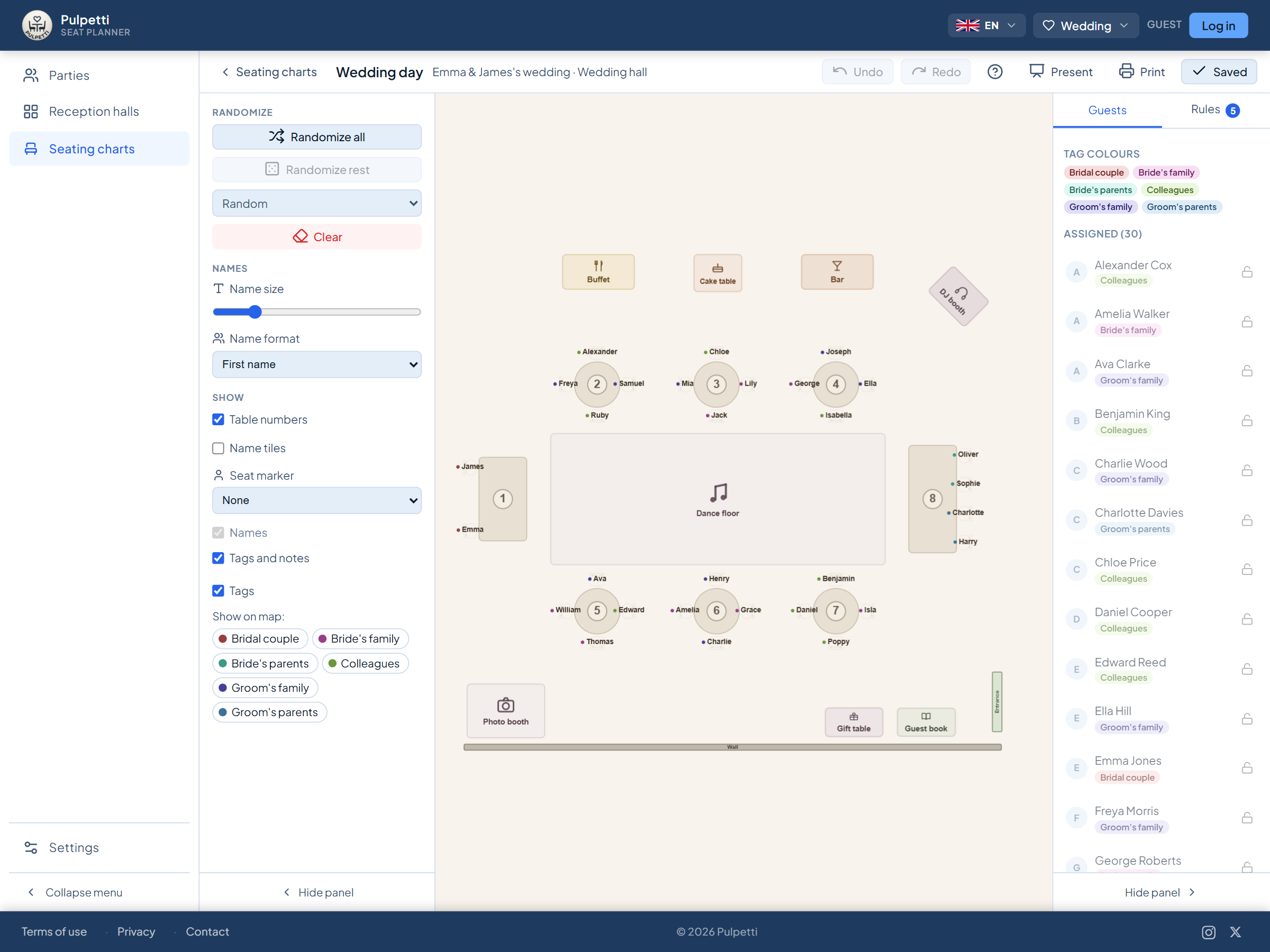
In Pulpetti you record them once, and they still apply in the next version — and the one after that. You seat the guests yourself by dragging, or let the app do the work, and if a rule is not met, the note below the chart says whose seat it is about.
A last-minute cancellation does not mean starting over. You set the guest's status to "Not attending", lock the seats already agreed and share out only the ones that have come free. Everyone else sits where they sat before.
Everything happens in the browser, on a tablet too. From the finished chart you print the place cards, the table signs and the door list — the same stationery that would otherwise be bought separately.
Four situations that come up at almost every wedding.
All four are solved by the same chart: it remembers the rules, survives cancellations and prints all the way to the tables.
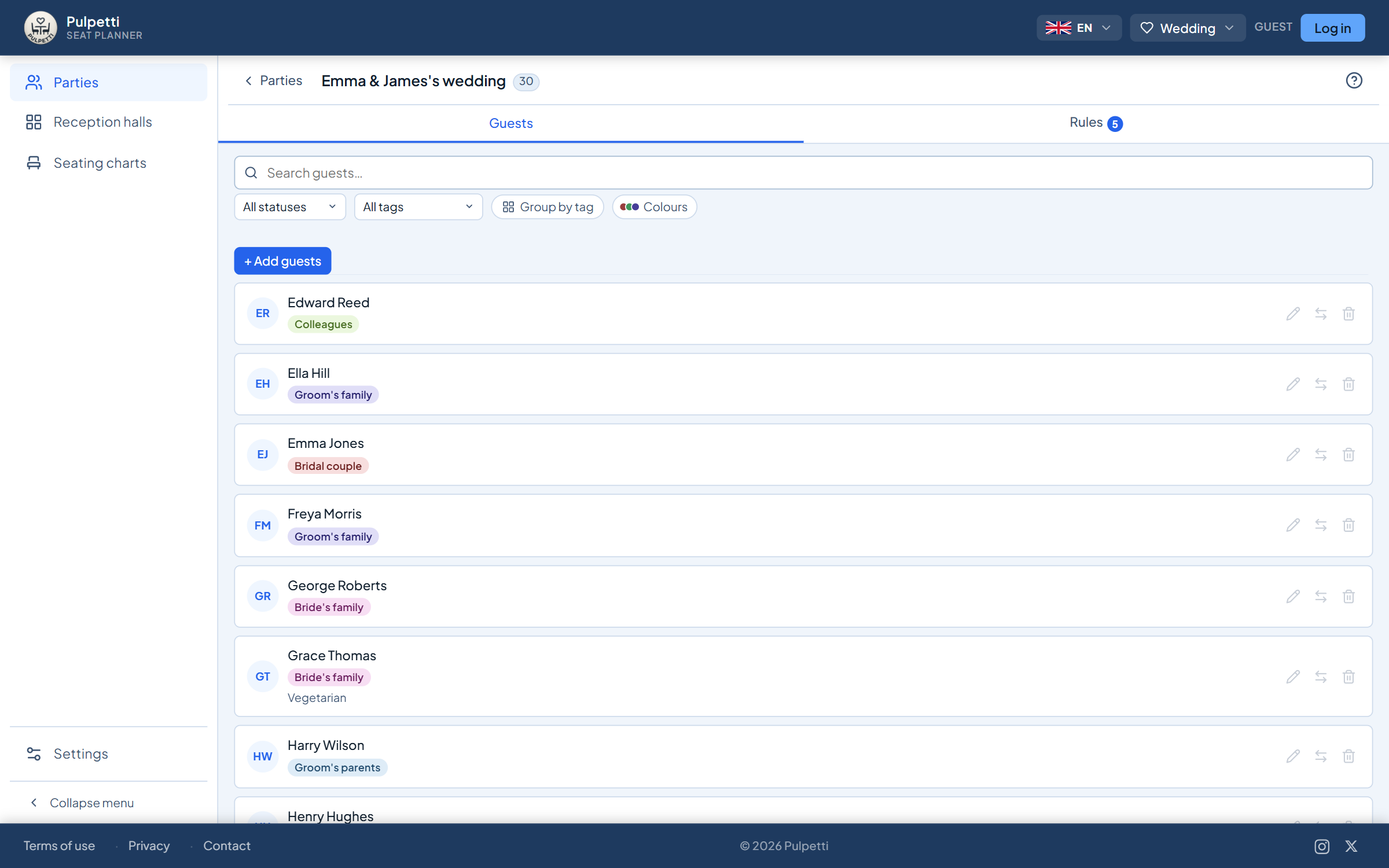
Type the names one by one or paste the whole list at once from the clipboard. Mark for each whether they are attending, have not replied or are not attending — in the app the field is called RSVP. Add a tag as well, saying which set the guest belongs to. You name the tags yourself: the bride's family, the groom's family, colleagues, children.
Start from a ready-made template or drag the tables into place one at a time. Besides tables there are more than twenty objects: a cake table, a gift table, a guest book, a dance floor, a buffet, a bar and a ceremony area — plus trees and fences for an outdoor wedding.
Eight rule types cover what a wedding chart needs: who must not be at the same table, who sits side by side, whose seat is at the head table, plus the tag-based "same tag, same table", "same tag at different tables" and "different tags, different tables". Then you press "Draw all" and fine-tune the rest by hand — or drag the names into place yourself from the start.
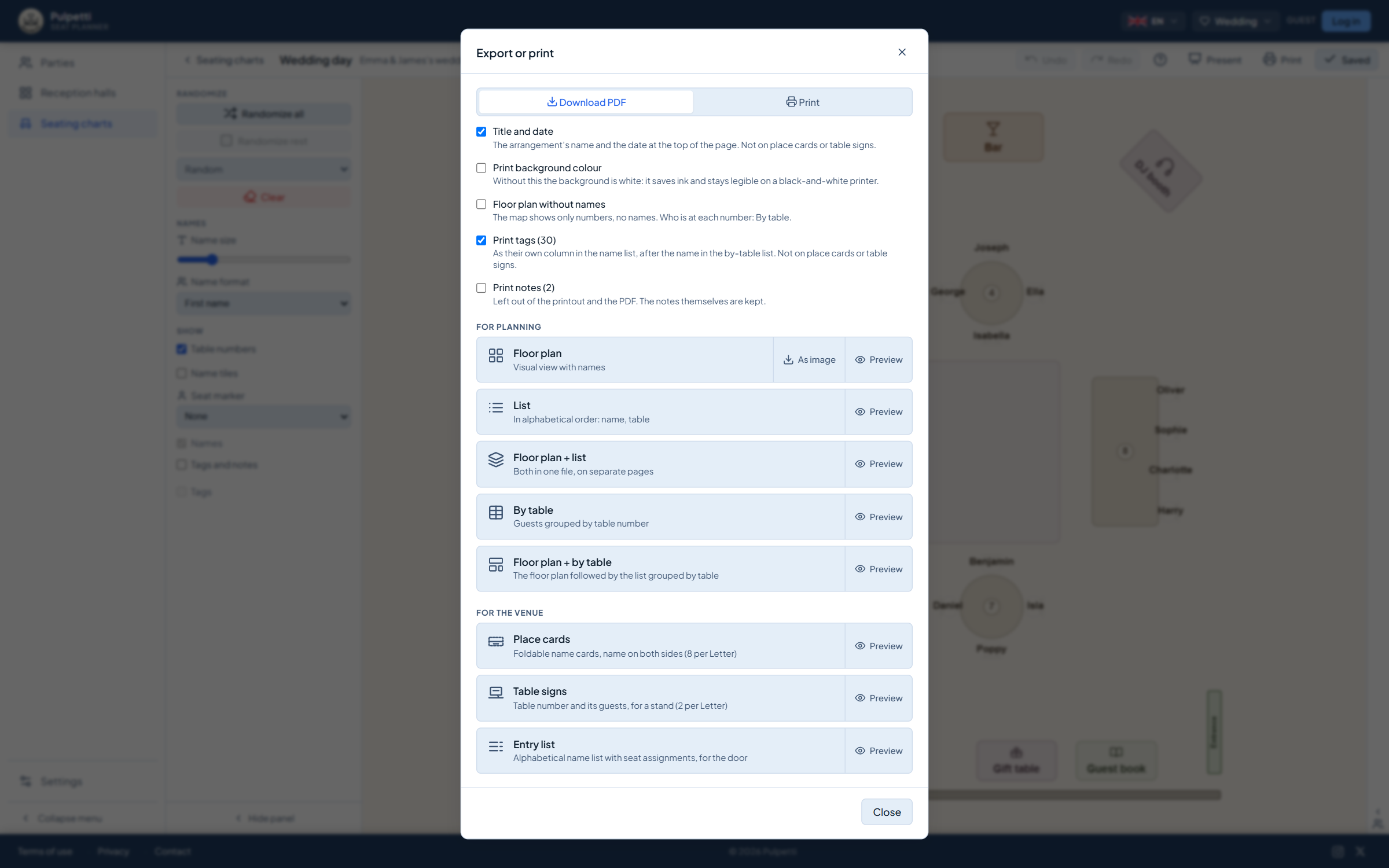
Place cards for the tables and table signs for the stands. An alphabetical door list for the reception, with the table number after every name — a guest finds their seat at the door without asking anyone. All from the same chart, on A4 or as a PDF.
Try it yourself and see how easy it is to make a seating chart. Try it free
A wedding chart is made many times over, but the guests are the same every time. When you record a rule, it is not a mark in one draft but something you know about the guests — and it applies to every version after that.
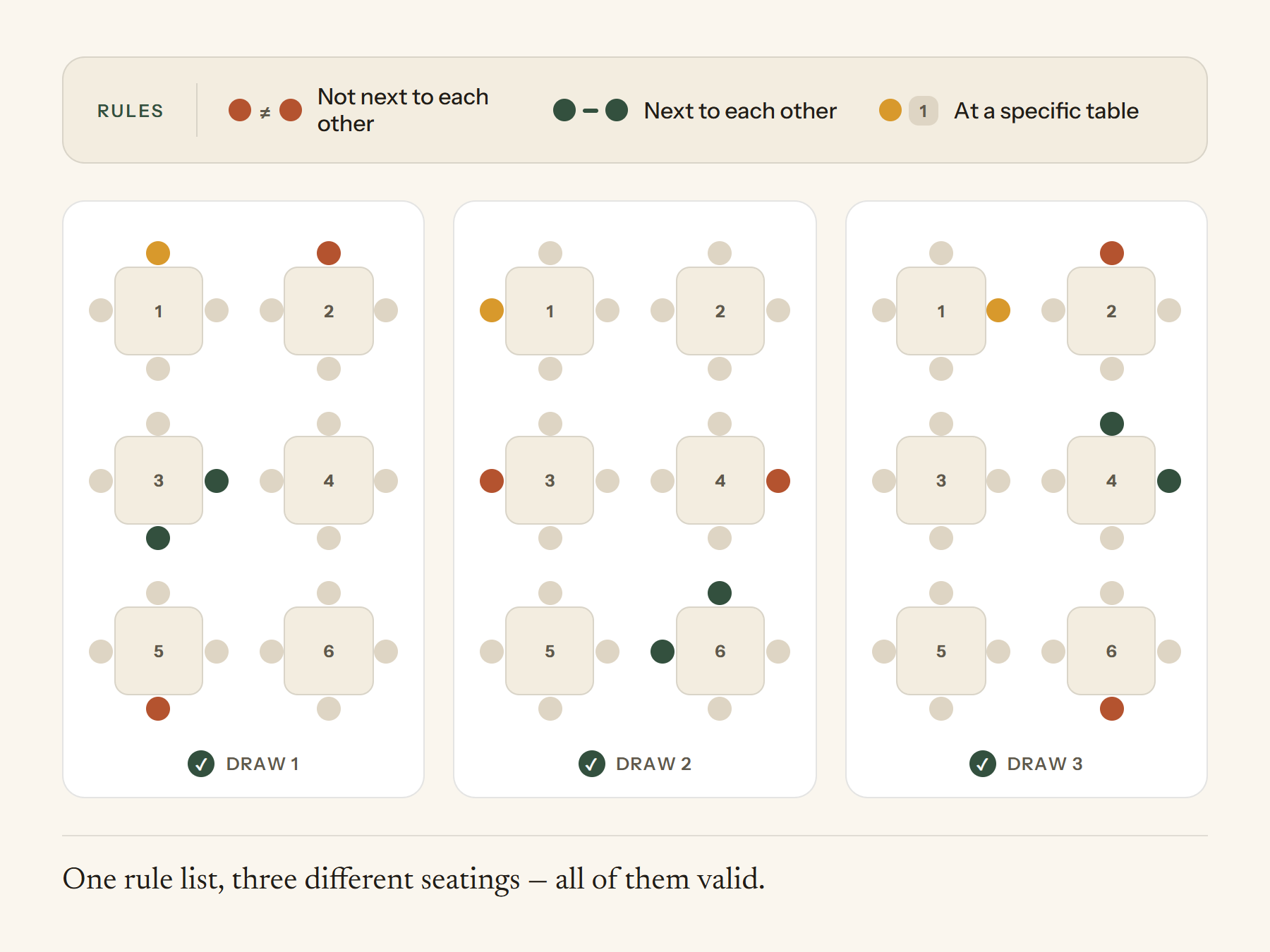
"Not at the same table" and "not side by side" hold every time. They are precisely the ones nobody wants to explain out loud or get wrong.
Give the guests a tag you name yourself — say, the bride's family, the groom's family or colleagues — and use the rule "same tag at different tables" if you want the sets mixed. "Same tag, same table" keeps a group together for as far as the tables allow.
Whoever's seat is already decided can be fixed in place: the rule "at a given table" always takes a guest to the head table, and a single seat can be locked before a new draw.
Below the chart there is a plain-language note about every broken rule, naming names. It does not stop you saving, it just makes sure nothing slips through.
These are usually bought separately and the names written by hand. Here they come out of the finished seating chart, cut and fold lines included.
Folded cards with the name on both sides — for the person opposite as well. Cut and fold lines ready, so the sheet can go straight to the trimmer.
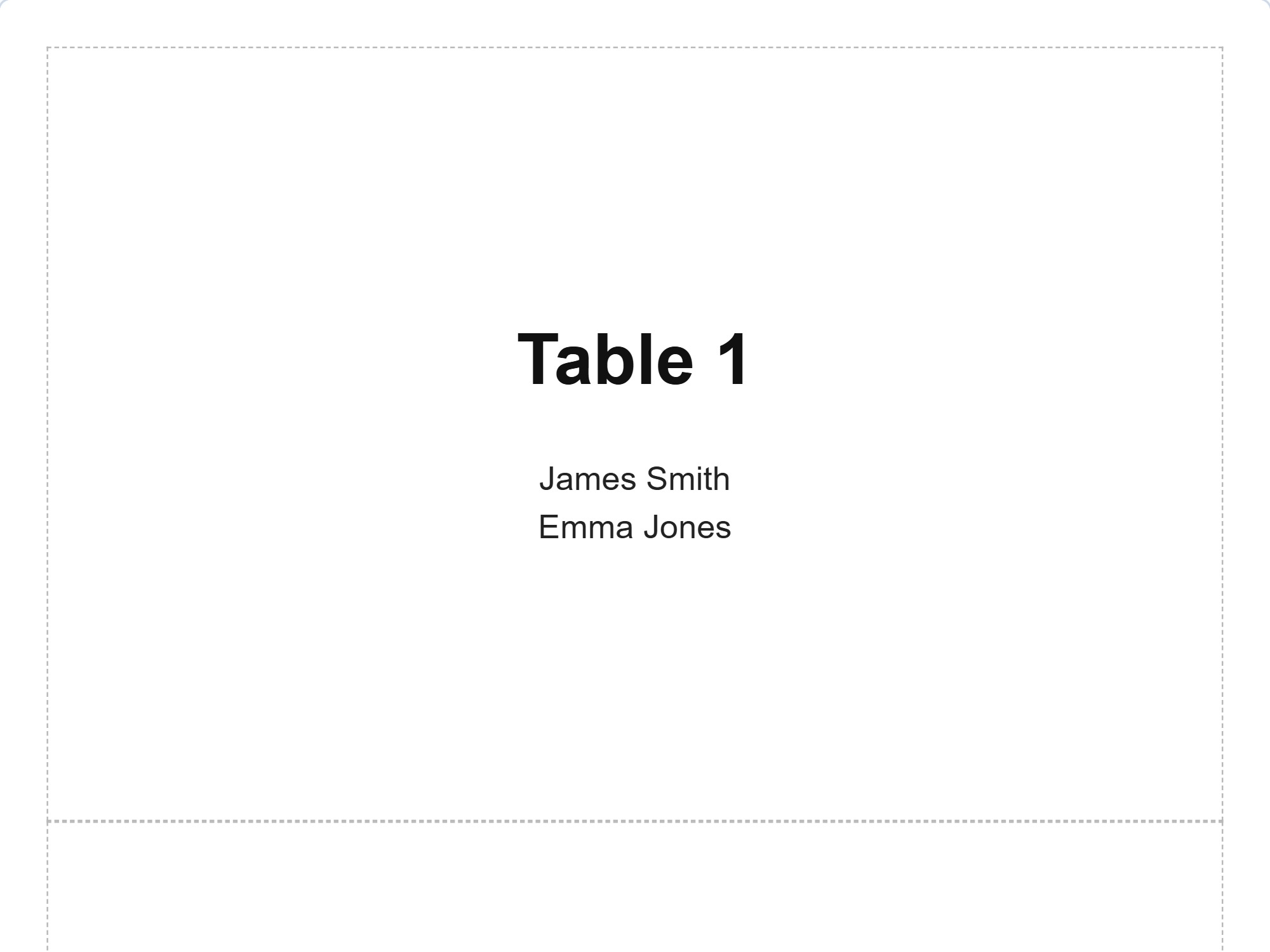
The table number and the guests at that table on a standing sign. The list of names splits into one or two columns on its own, depending on the size of the table.
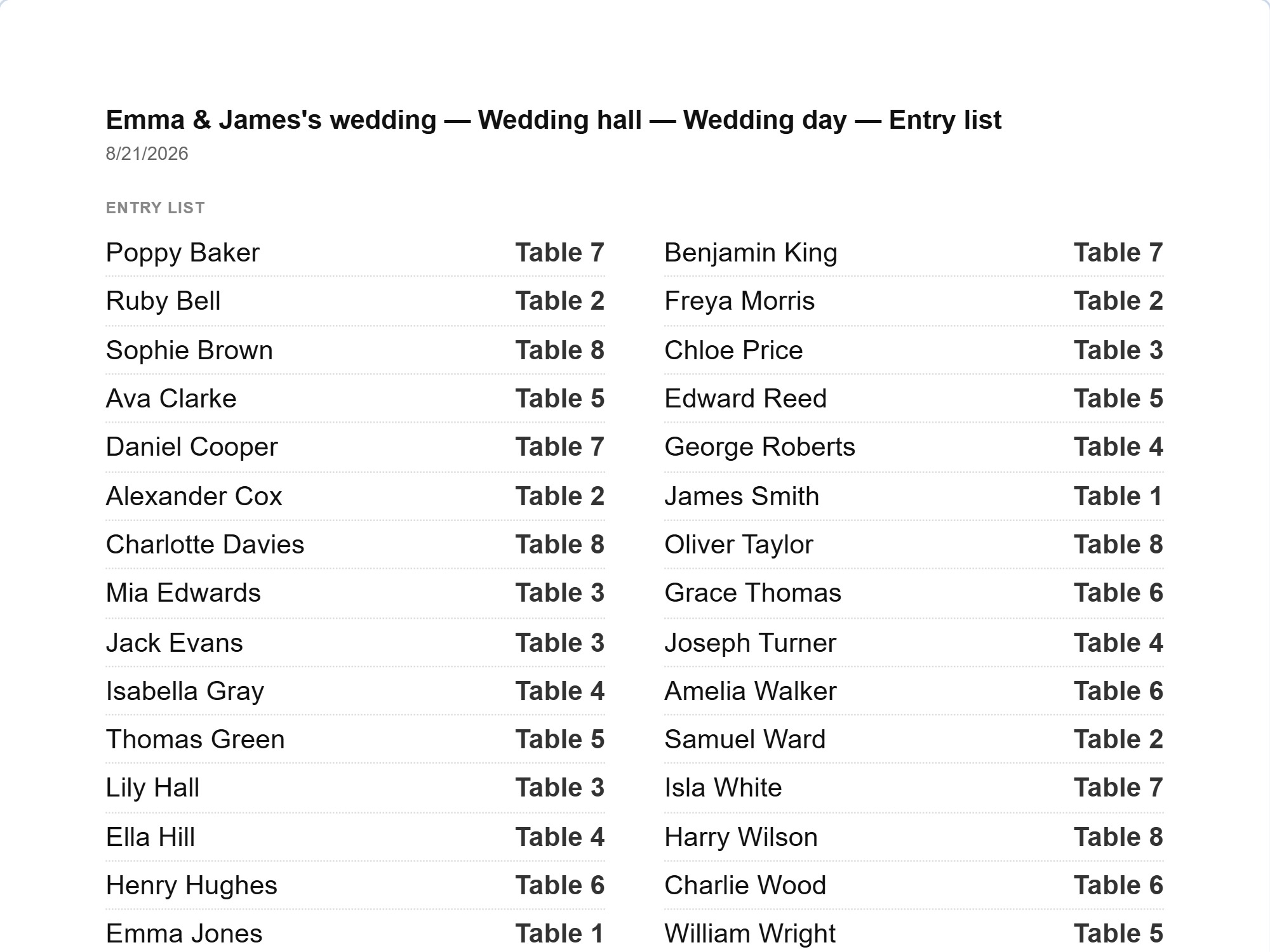
An alphabetical name → table number list for the reception. Two columns, at a readable size — a guest finds their seat themselves.
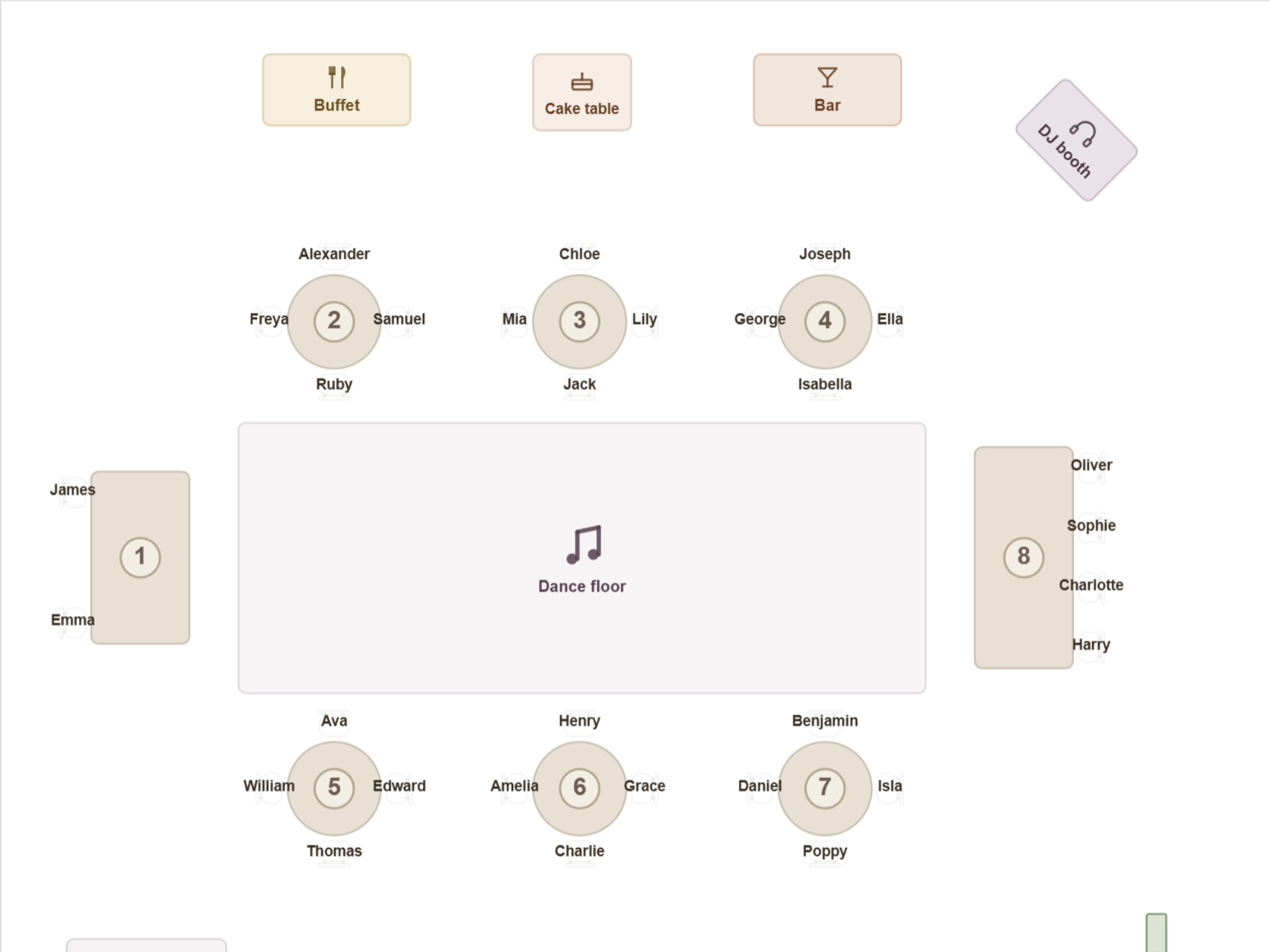
A floor plan with the number and the guests written at every table. For the venue staff and the master of ceremonies.
You see a preview of every printout before printing. The same is available as a PDF, so the chart can be sent to the venue or printed wherever there is a printer — the file does not change on the way.
Paste your own guest list and try printing the cards. Try it free
The guest list is still unfinished and the number of tables is open. Draw the hall, put the names into their sets with tags and see what the split looks like. The seat counter tells you whether the guests fit, before anything is agreed with the venue.
Mark each RSVP as the replies arrive. "No reply" stays on the chart — the seat is held until you know otherwise — and "Not attending" drops out of the seating without the name disappearing from the list.
Two canceled, one is bringing a plus-one. Lock the seats that have already been told to the guests, share out the rest again and print the cards only then. The rules do not have to be recorded again — they still apply.
Place cards on the tables, signs in the stands and the door list at the reception. If someone did not come, the chart opens on a tablet rather than a phone — the change is no more than moving a name.
From the guest list to the finished place cards — in one tool.
Sticky notes work on the floor, but they do not survive one cancellation. A spreadsheet knows names but not the hall. Neither remembers which relatives to keep apart or prints place cards.
| Sticky notes | Spreadsheet | Pulpetti | |
|---|---|---|---|
| Rules survive from one draft to the next | – | – | ✓ |
| Seating that follows the rules | – | – | ✓ |
| A note when a rule is broken | – | – | ✓ |
| A cancellation without redoing the whole chart | – | partly | ✓ |
| A reception hall to scale | – | – | ✓ |
| Folded place cards on A4 | – | – | ✓ |
| Table signs and door list ready made | – | partly | ✓ |
Yes, and for a wedding it is the sensible choice. The one-off purchase opens two parties, two reception halls and two seating charts — and there can be any number of guests. Printing and PDF export are included, as is cloud storage. It is a single payment that does not renew, and it is valid for 3 months from purchase. So buy it when the chart is actually being made — not right after the engagement. Once it expires the chart is kept and can be downloaded as a backup, but it is only available in the app again after a new purchase or a subscription.
With the rule "not at the same table". The rule belongs to the guests rather than to one draft, so it still applies when you share the chart out again. The matching "not side by side" keeps two guests in different seats within the same table.
Set the guest's status to "Not attending", and they drop out of the seating but stay on the list. Seats already given are left alone. Lock the seats that have already been told to the guests and share out the rest again — only the seats that came free are filled. When printing, cancellations can be left out entirely with one tick.
You can. The head table — or the top table, or whatever you want to call it — is an ordinary table that you name yourself. Use the rule "at a given table" for the guests whose seat is decided. The rest are shared out by the rules without that table being touched.
Folded cards, eight to an A4 sheet. The name prints on both sides, so it is visible both to the person sitting there and to the person opposite, and the sheet comes with cut and fold lines ready. The same chart also produces table signs, two to a sheet, and an alphabetical door list.
Yes, on the paid plans. The same guest list and the same reception hall can carry many seating charts, and they all follow the same rules. A finished chart also gives you a copy for the next version to start from.
You can write a free note for every guest. It does not affect the seating — it is information for you — and it is off printouts by default: you include it only if the sheet is going to the kitchen.
No. You can open the app straight in your browser and try it with the ready-made example data or with your own names. Without signing in, your data stays in your own browser, and the free plan holds 15 guests — a whole wedding chart needs the one-off purchase or a subscription.
The traditional order at the head table, how many guests fit around a table without the conversation breaking up, and when the chart should be locked down — those are collected in a guide of their own.
Read the guide: the head table, table sizes and the wedding chart timeline →A wedding happens once. That is why the one-off purchase is enough: it opens the whole guest list, printing and cloud storage for a single payment and does not renew. It is valid for three months, so buy it when the chart is being made.
€0
Permanent, not a trial
€4.99
One payment, does not renew · valid for 3 months
€2.49/ month
or €27.39 / year (€2.28 / month)
Prices include VAT. Charged in euros. At checkout you can pay in your own currency.
Also available for iPad.


Pulpetti came out of a practical need. I have helped organise a number of events, and the table plan is every time the part that gets changed until the very last moment. When you have to keep track by hand of who sits together and who does not, a single cancellation means starting over.
My partner is a teacher, so I have seen the same work from the classroom side as well. I am a software developer by trade, and I decided to build a program that runs in the browser and keeps the rules between people unchanged from one occasion to the next. If something puzzles you or you want to suggest a new feature, write to me. I hope you like it!
Tomi NevalainenMaker of Pulpetticontact@pulpetti.com
Paste the names, draw the hall and see what kind of chart comes out. No account needed.
Try it free