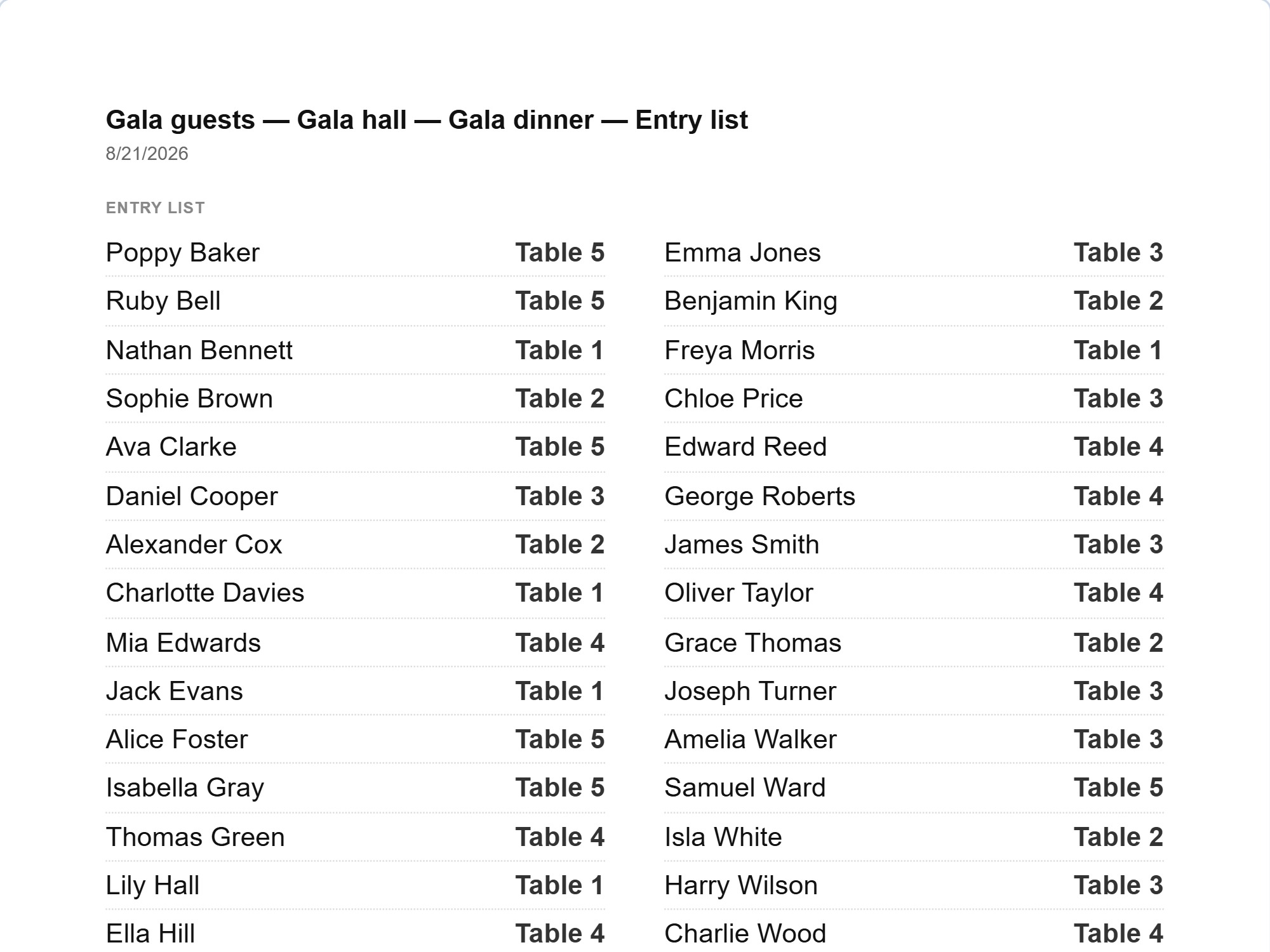
Door list
An alphabetical name → table number list for the reception. Two columns, at a readable size.
For event organizers
State the rules — who must not sit side by side and who belongs together — and let the app place the rest. Fine-tune by hand or build the whole chart yourself. Print the door list for the entrance and the table signs for the venue.
Runs in the browser on a computer or tablet. Nothing to install, no account to try it.
On a phone you can browse and show a finished seating plan. Building one goes better on a bigger screen. Email this link to myself
At a seminar, at a conference and at a gala dinner, the table assignment decides between whom a conversation starts. The same chart serves several purposes at once: the attendees have to end up in company that makes sense, the speakers and the organizers in their own seats, changes from registration have to be taken in right up to the last moment — and the staff have to be able to find any guest in seconds.
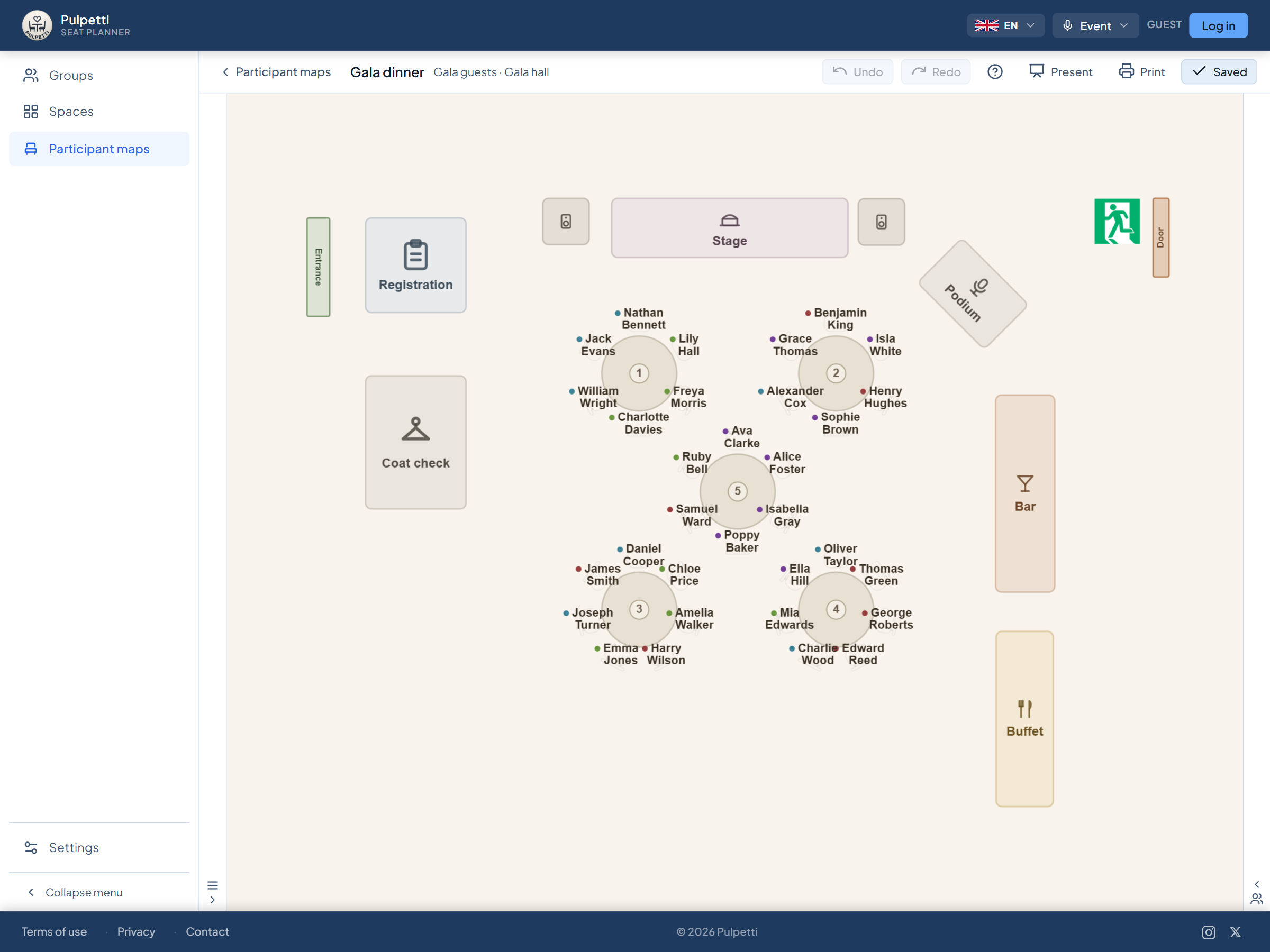
In Pulpetti you build the room's floor plan to scale and seat the guests however you like: drag a name from the list onto a seat, swap two people over — or let the app do the work. A rule is one sentence about the guests: "these two at separate tables", "speakers at table 1", "people from the same organization spread out". You say it once, and it applies every time the chart is drawn again.
Automation is never compulsory. You can build the whole chart by hand, draw only the rest once the important seats are agreed, or draw them all at once. The app tells you straight away if a rule is not met, and prints the result both for the door and for the tables.
All of this happens in the browser: nothing to install, nothing to update, and the same tool opens on a computer and on a tablet. On the paid plans the chart is stored in the cloud, so you plan it at your desk and make the last-minute corrections from a tablet at the door.
These four come up at every event with named seats.
All four are solved by the same chart. You build it once — seating people yourself or stating the rules — and changes are quick right up to the morning of the event.
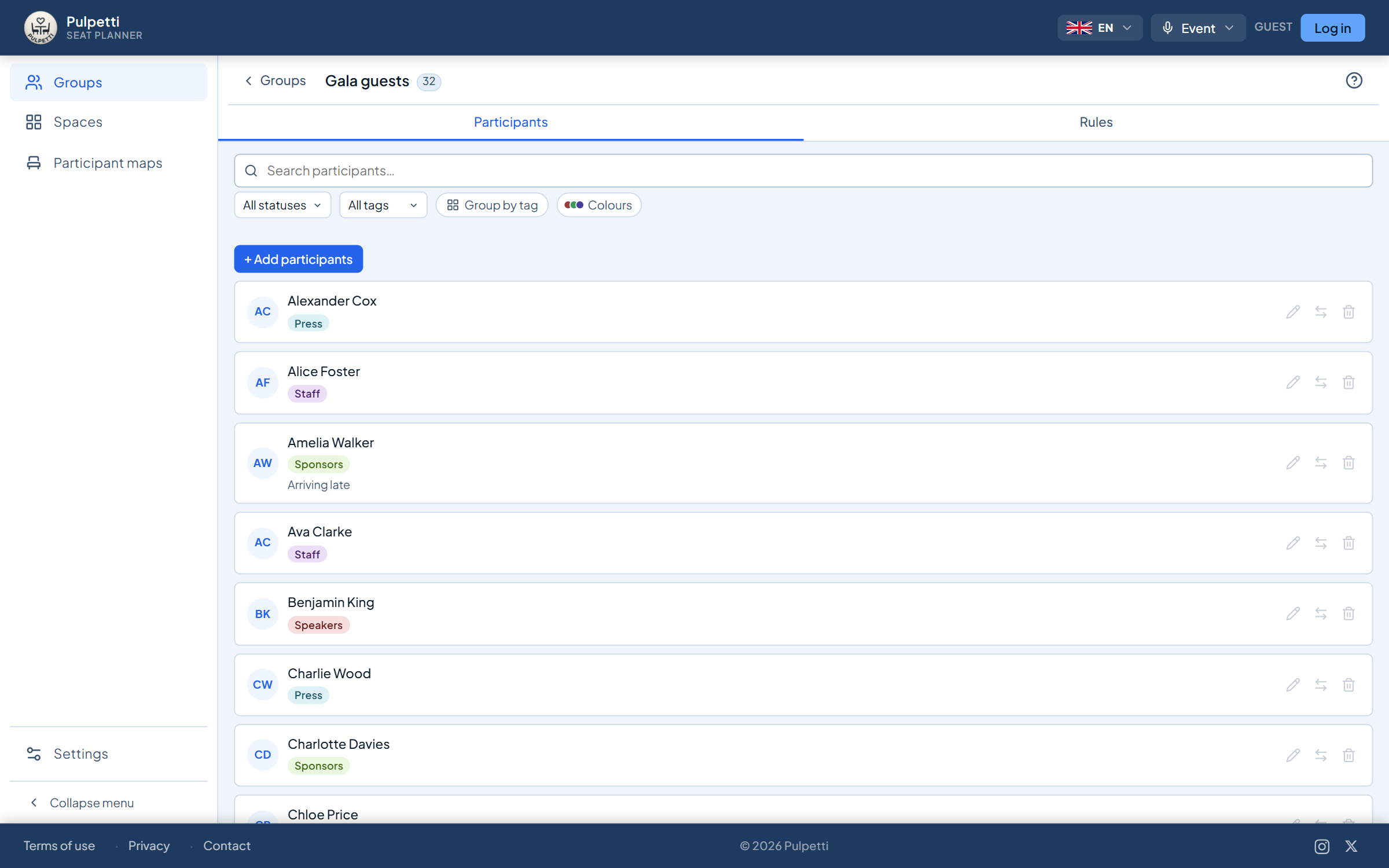
Type the names one by one or paste the whole list at once: select the name column in your registration list, copy and paste. Give each one a registration status — registered, no reply or canceled — and, if you like, a tag and a note.
Start from a ready-made template or drag the tables into place one at a time. The shape and seat count of every table can be changed afterwards, so the room comes out the way it really is. No tape measure is needed, but you can have an exact plan by entering the dimensions of the room and the tables.
Drag a name from the list straight to a table; dropped on a taken seat, it changes places with whoever is sitting there. Or give out tags you name yourself — say, industry, organization, language or speakers — and rules built around them, and press "Draw all". Both ways work in the same chart: lock the seats already agreed and draw only the rest. Rules and the draw apply to seats — booths and stalls are always placed by hand.
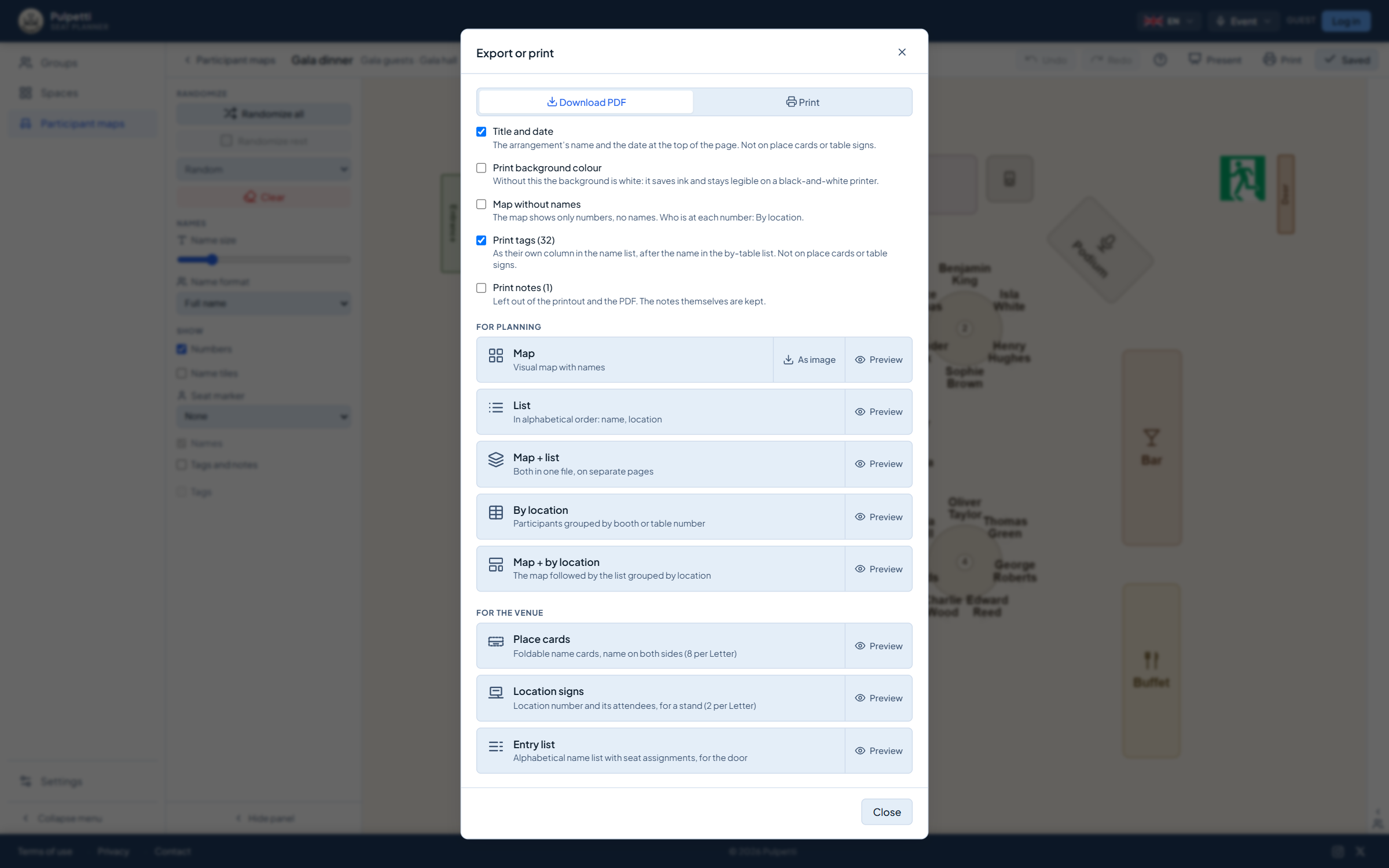
The door list for the reception, table signs for the tables, place cards for the seats and the floor plan for the staff. All from the same chart, on A4 or as a PDF.
Try it yourself and see how easy it is to make a seating chart. Try it free
A rule is not a mark on one chart but something you know about the attendees. It travels with them even if you redo the chart from scratch: you say it once, and it applies to every version after that.
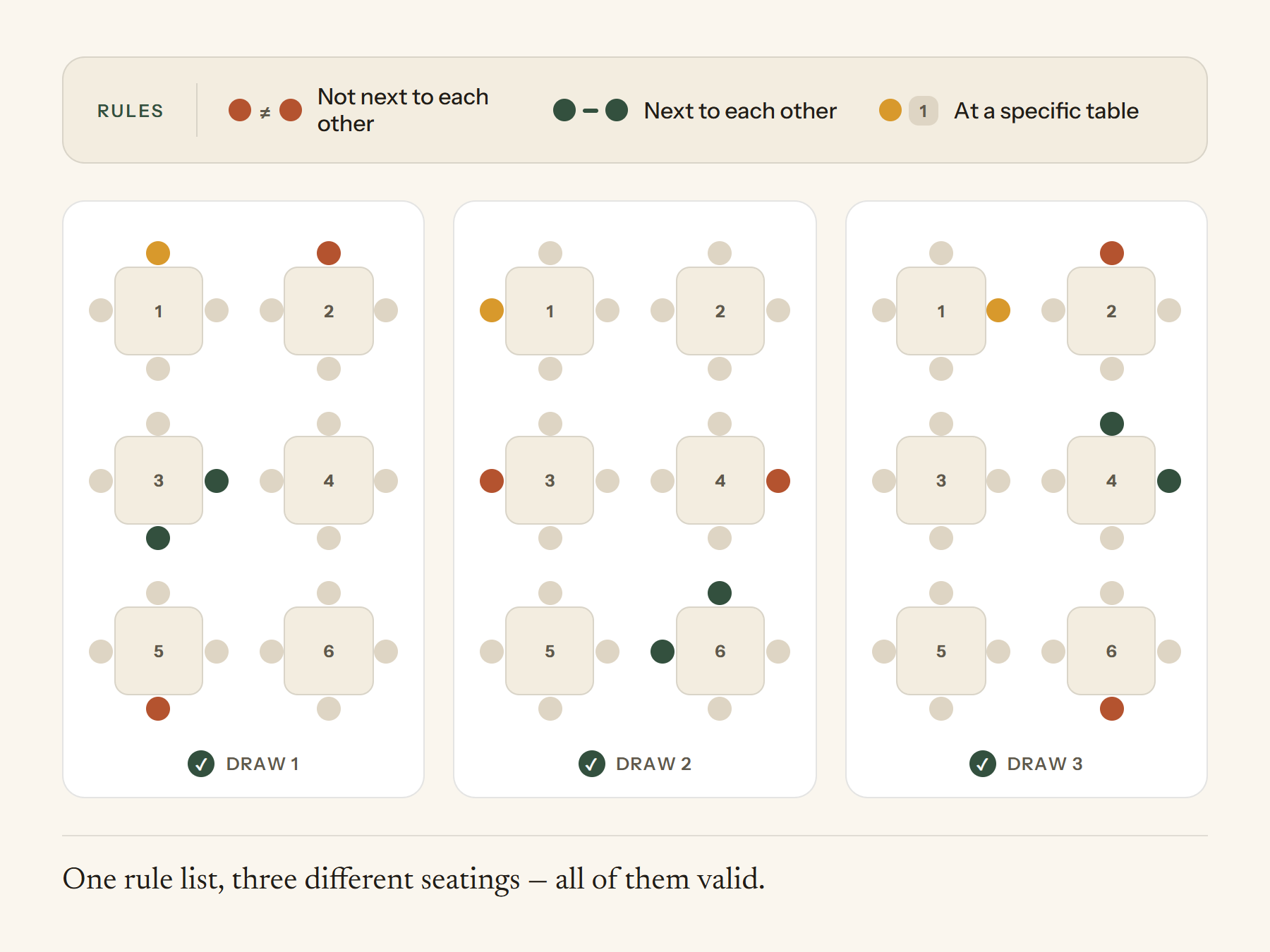
When you mark "these two at separate tables", the app keeps it. Draw the chart again as many times as you like — the rule applies every time.
Below the chart there is a plain-language note about every broken rule, naming names. It does not stop you saving, it just makes sure nothing slips through.
Speakers and organizers at their own tables, partners in their own seats. Locked seats stay put when you draw the rest again.
The chart does not stay on screen. The same seating chart produces the printouts for the door, the tables and the staff — lists to read in your hand, signs and cards to cut along the lines that are already there.
An alphabetical name → table number list for the reception. Two columns, at a readable size.
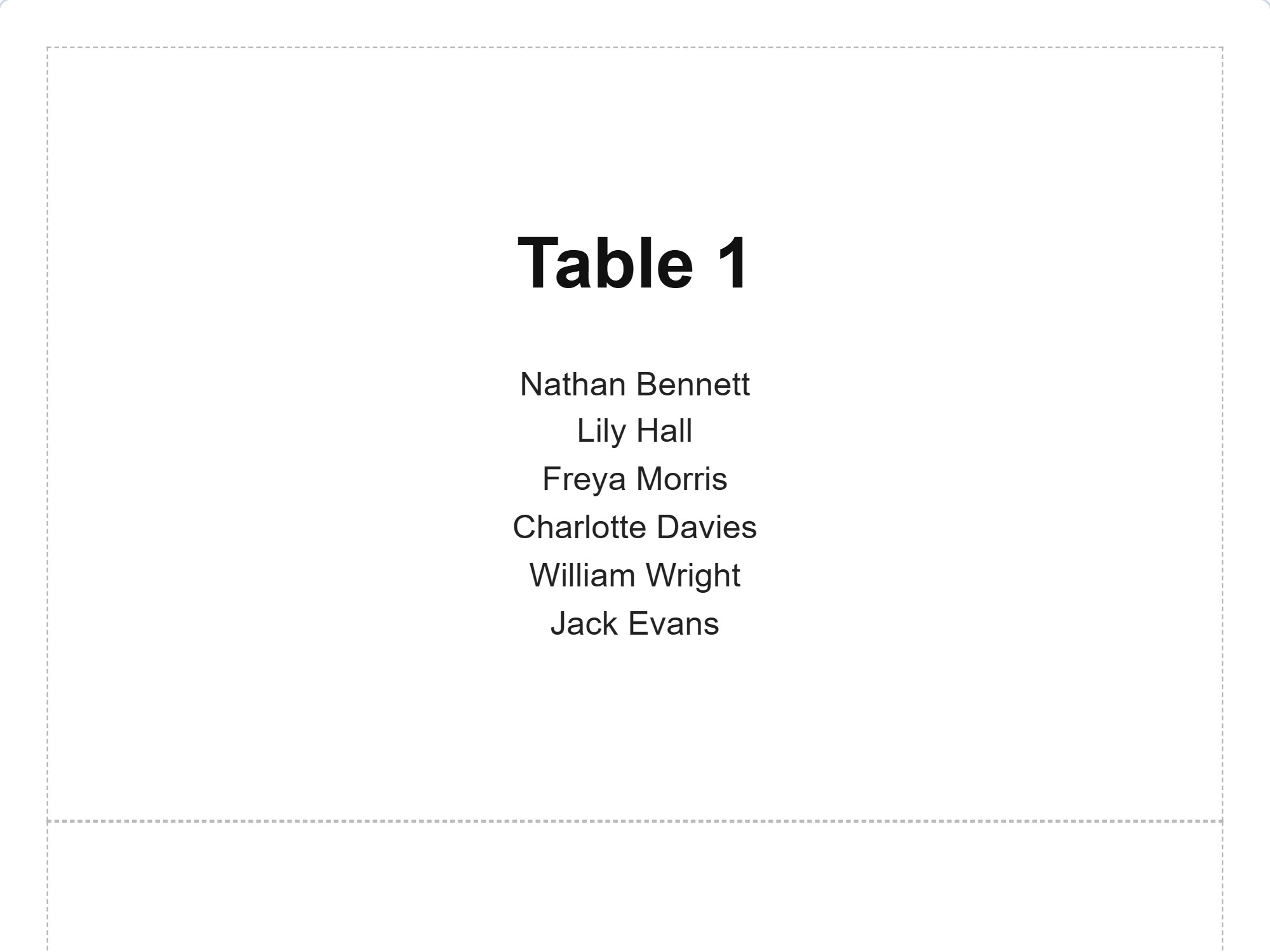
The table number and the attendees at that table on a standing sign. The list of names splits into one or two columns on its own.
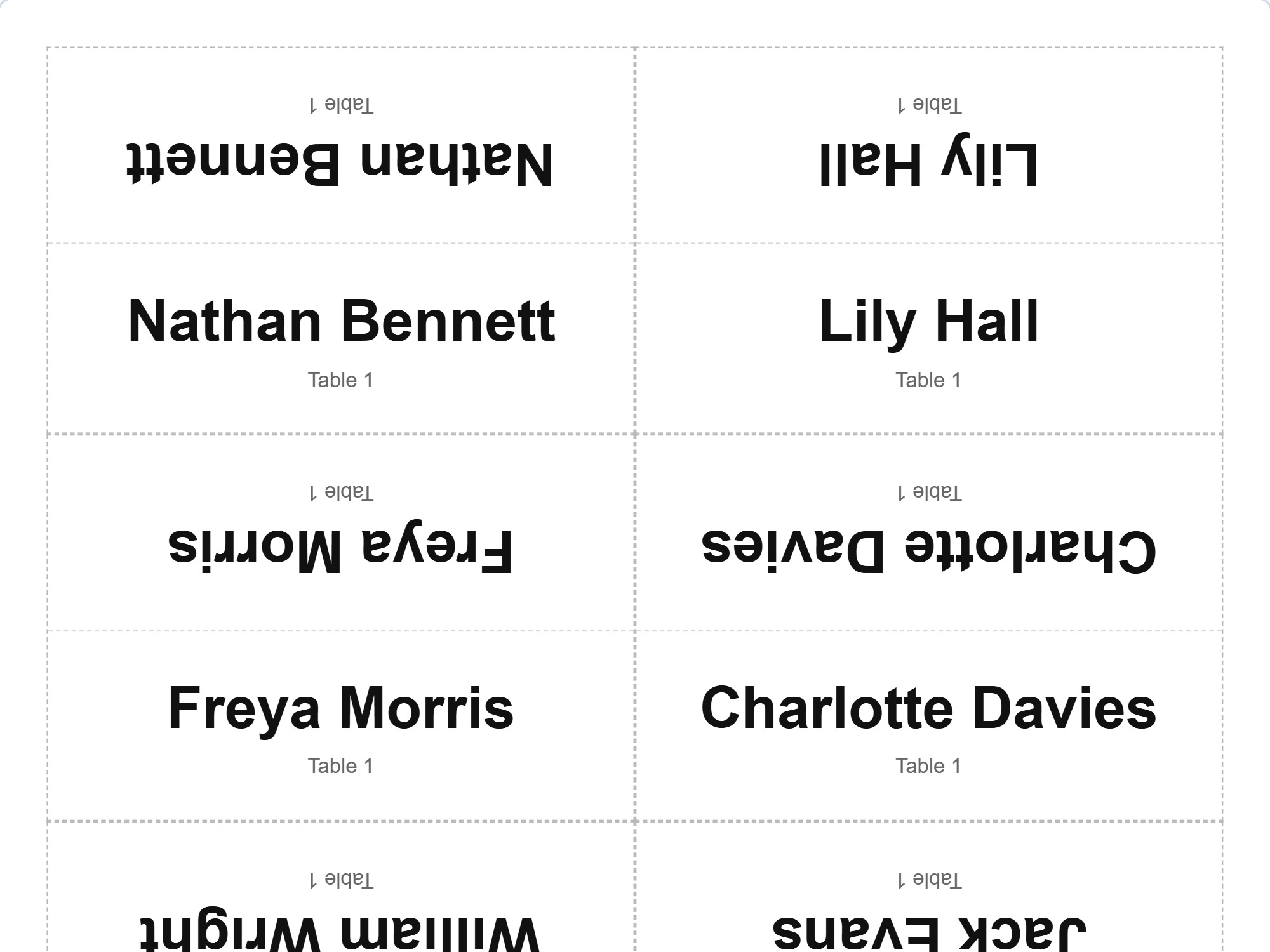
Folded cards with the name on both sides — for the person opposite as well. Cut and fold lines included.
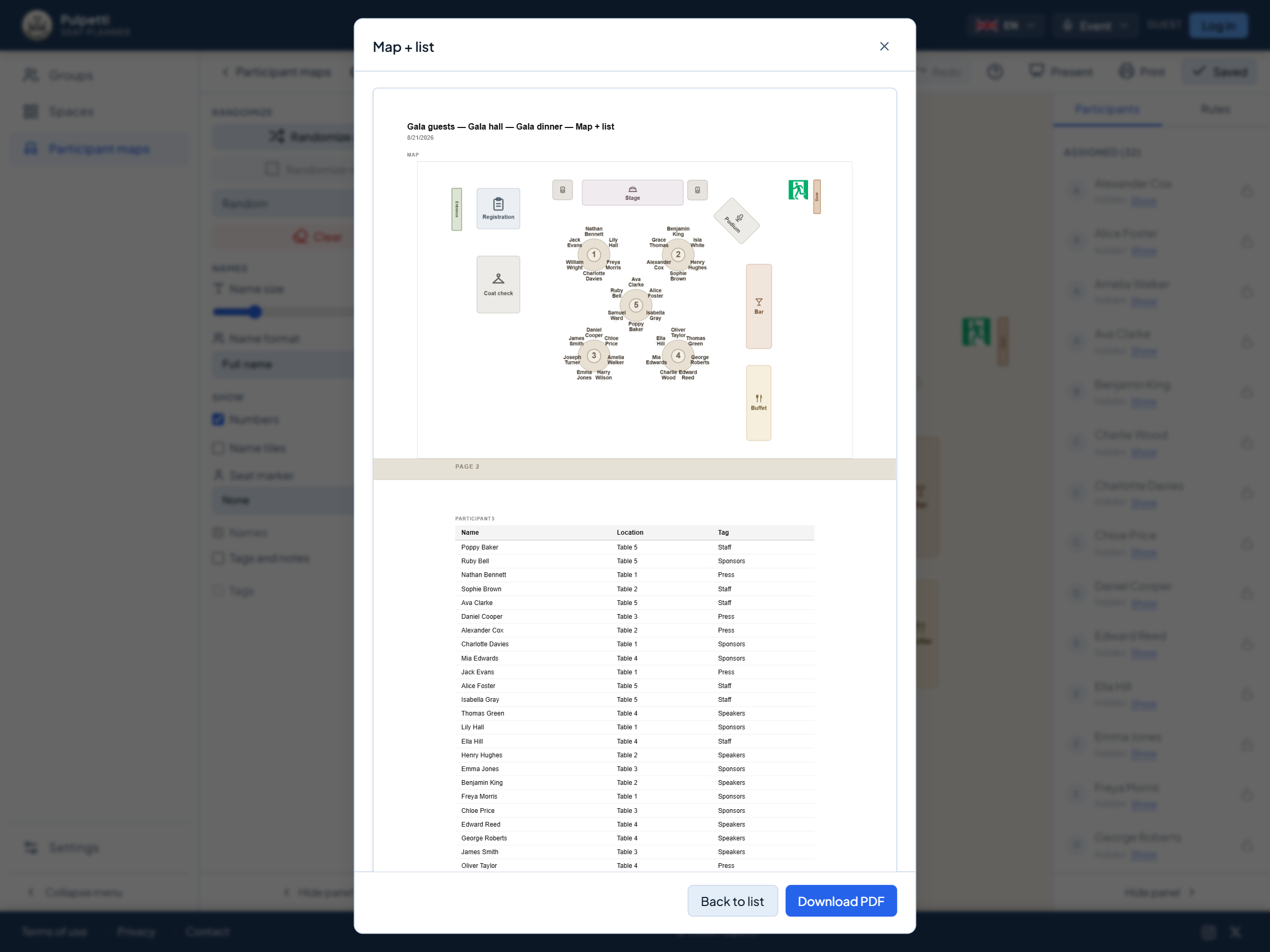
The chart with names for the staff, the list by surname or by table. Save as a PDF or send it straight to the printer.
You see a preview of every printout before printing. The same is available as a PDF, and it is often more practical than paper: you email the chart to the venue, the caterers or the staff and print it anywhere without the file changing. Next year's starting point, however, is not the PDF but the chart itself: it stays in the app, and it gives you a copy to carry on editing.
Paste your own attendee list and try printing it. Try it free
Named seats and a ready banquet layout, with the shape of the tables your own choice. Mark the speakers and the guests of honour to their own tables and let the app share out the rest. The place cards and the table signs come from the same chart.
Turn the same room from rows into group tables when the program changes. The grouping can be drawn again for every workshop, and the tags make sure the same set does not always end up together.
Give out tags by industry or organization and the rule "same tag at different tables". The lunch tables come out mixed without anyone having to think about it one name at a time.
Besides tables, the event setting has places of its own: booths, food stalls and market stalls, each with their own number series. Draw the area, number the places and record who is where.
From building the room to the finished printout — in one tool.
A spreadsheet knows names but not the room. A design program knows the room but not the rules. In both, the chart goes out of date the moment one attendee cancels.
| Spreadsheet | Design program | Pulpetti | |
|---|---|---|---|
| Seating that follows the rules | – | – | ✓ |
| Grouping attendees with tags | laborious | – | ✓ |
| Attendee registration: registered, no reply, canceled | laborious | – | ✓ |
| A floor plan to scale | – | ✓ | ✓ |
| A cancellation without redoing the whole chart | – | – | ✓ |
| Ready-made event objects | – | partly | ✓ |
| Automatic table numbering and a seat counter | – | – | ✓ |
| Booths and stalls with number series of their own | – | – | ✓ |
| Door list and table signs ready made | partly | – | ✓ |
| Folded place cards on A4 | – | – | ✓ |
The number of attendees in a seating plan is not limited on the paid plans. Space does not run out in practice: the room can be 1–100 meters (3–330 feet) a side, there is room for as many tables as you draw, and one table holds up to 12 seats. On the free plan the limits are 15 attendees plus one group, one space and one chart — enough for trying it out, but not for a whole event.
Start from a ready-made template or from an empty room. From the object list you click or drag the tables, the stage, the buffet, the cloakroom and the safety markings into the room, and the shape, size, rotation and seat count of the selected object are adjusted in the side panel. Tables are numbered automatically by position unless you set the numbers yourself. The room is saved on its own, so the same room can be used in several seating charts.
There is no file import. Names are pasted from the clipboard: select the name column in your registration system or a spreadsheet, copy and paste — one name per line. The app points out duplicates and removes them in one click.
No. You can build the whole chart by hand: drag a name from the list onto a seat and swap guests around for as long as you like — a name dropped on a taken seat changes places with whoever is sitting there. The draw is an aid you can skip entirely, and even after it, every seat can be corrected by hand.
Set the attendee's registration to "Canceled", and they drop out of the seating but stay on the list. Lock the seats that are already agreed and press "Draw the rest" — only the seats that came free are filled again.
You can. Printing and PDF export are included in the €4.99 one-off purchase and in the subscription. There are eight printouts: the floor plan, the name list, the list grouped by table, floor plan + list, floor plan + by table, the door list, table signs and folded place cards.
Booths, food stalls and market stalls are places with one spot each and a number series of their own. They are filled by hand — the automatic draw applies to chairs only, and the app reminds you of this below the chart.
Yes. In presentation mode the chart fills the screen and can be moved and zoomed, but not edited by accident. Notes and tags are always hidden in presentation mode.
The app only needs names. Without signing in, your data stays in your own browser and never leaves the computer. On the paid plans it is stored in a secure cloud, and you can export or delete it yourself at any time.
Banquet, cabaret or theater style, how much space an attendee needs and how the tables should be divided up — those decisions are worked through in a guide of their own.
Read the guide: layout styles, capacity and table assignment →For a one-off event the one-off purchase is enough. A subscription is worth it if you run several events or use the app for other situations as well.
€0
Permanent, not a trial
€4.99
One payment, does not renew · valid for 3 months
€2.49/ month
or €27.39 / year (€2.28 / month)
Prices include VAT. Charged in euros. At checkout you can pay in your own currency.
Also available for iPad.


Pulpetti came out of a practical need. I have helped organise a number of events, and saw how slow it is to work through every constraint by hand. The guest list kept moving until the end, and every change meant drawing the chart again.
My partner is a teacher, so I have seen the same work from the classroom side as well. I am a software developer by trade, and I decided to build a program that runs in the browser and keeps the rules between people unchanged from one occasion to the next. If something puzzles you or you want to suggest a new feature, write to me. I hope you like it!
Tomi NevalainenMaker of Pulpetticontact@pulpetti.com
Paste the names, drag in the tables and see what kind of chart comes out. No account needed.
Try it free