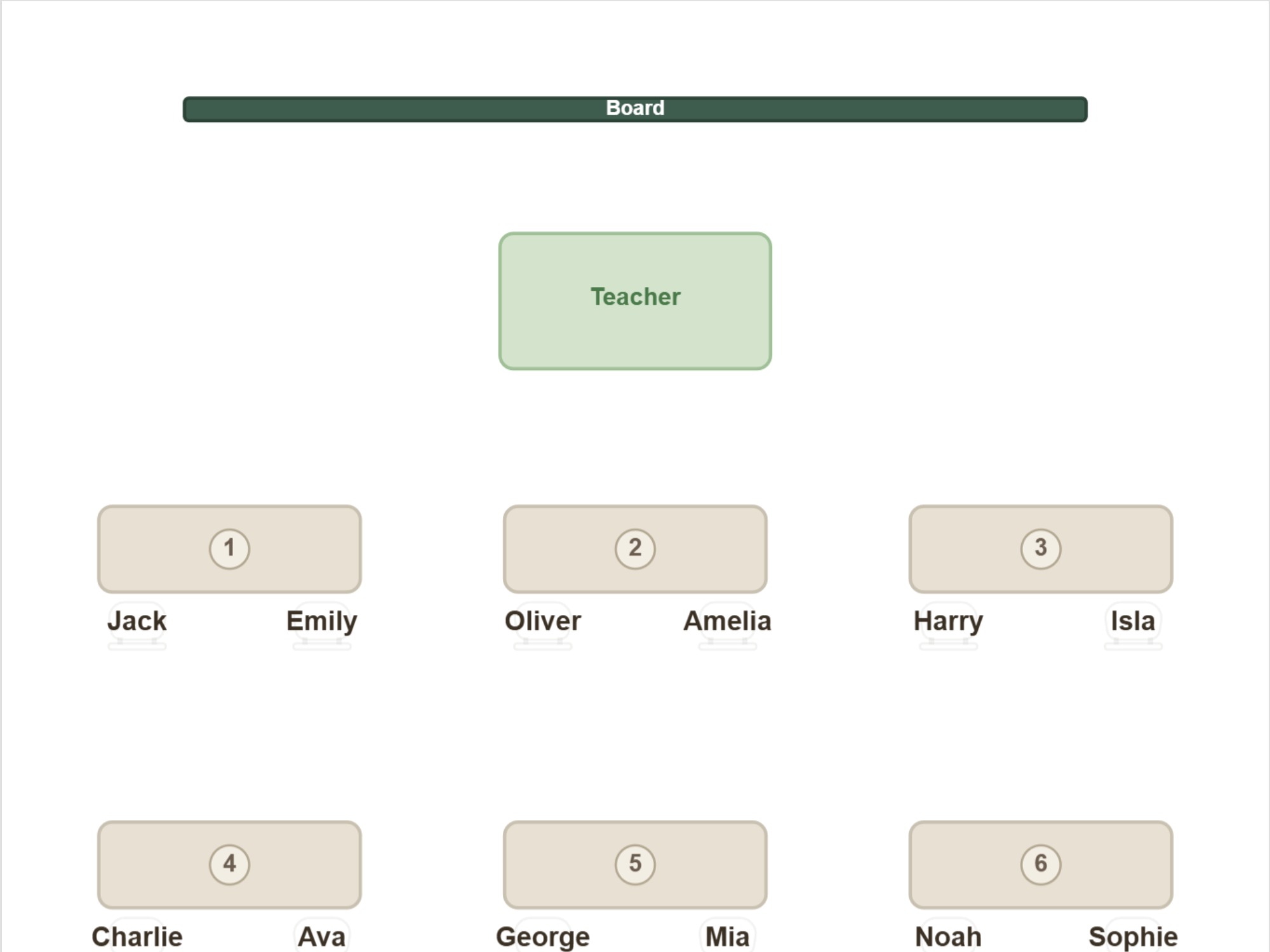
Classroom chart with names
A floor plan with a name on every desk. Your own copy for the desk when the group is new — and the same sheet works for a substitute teacher as it is.
For teachers
Say once who must not sit together, who works well together and who needs a seat at the front. Let the app place the rest, or decide yourself. After that a new term is a matter of seconds, and the exam and group-work layouts are ready and waiting.
Runs in the browser on a computer or tablet. Nothing to install, no account to try it.
On a phone you can browse and show a finished seating plan. Building one goes better on a bigger screen. Email this link to myself
A good seating chart makes the lesson run more smoothly. Students who help each other learn side by side, the one who needs the teacher's attention at the front, the ones who distract each other far apart. And all of it is supposed to be held in your head, every time the layout changes.
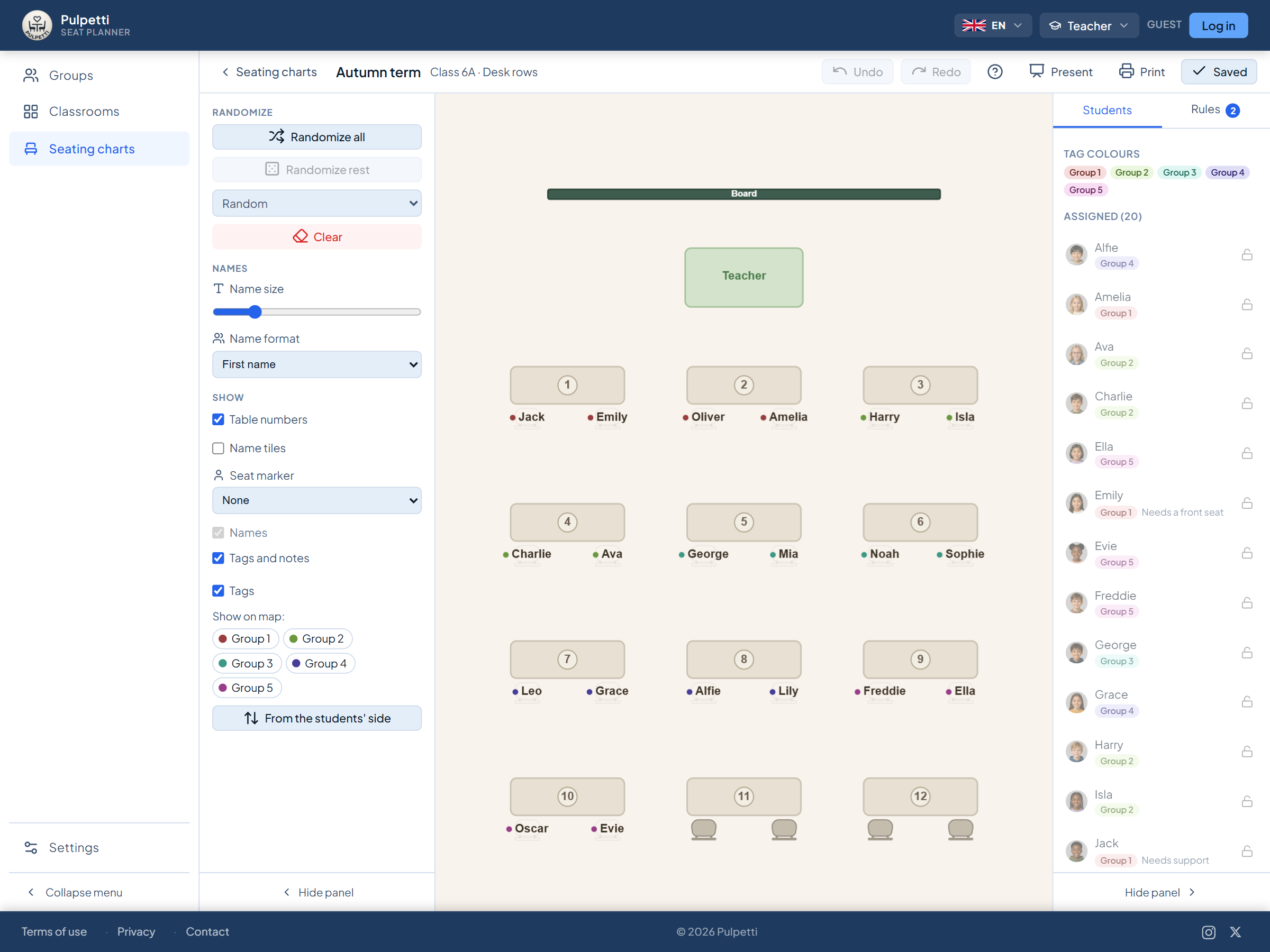
In Pulpetti you draw the classroom once and state the rules once. After that you seat the students however you like: drag a name from the list onto a desk, swap two students over, or let the app do the work. Rules belong to the group rather than to one chart, so they still apply in the next layout — and the one after that.
Automation is never compulsory. You can build the whole classroom chart by hand, lock the seats you have already thought through and draw only the rest. If a rule is not met, the note below the chart says whose seat it is about and why.
Everything happens in the browser: nothing to install, no permissions to request on the school computer. The same tool opens on the classroom computer, at home and on a tablet.
Four situations that come back term after term.
You build the classroom chart once — seating students yourself or stating the rules — and the rest of the term is seat changes, not starting over.
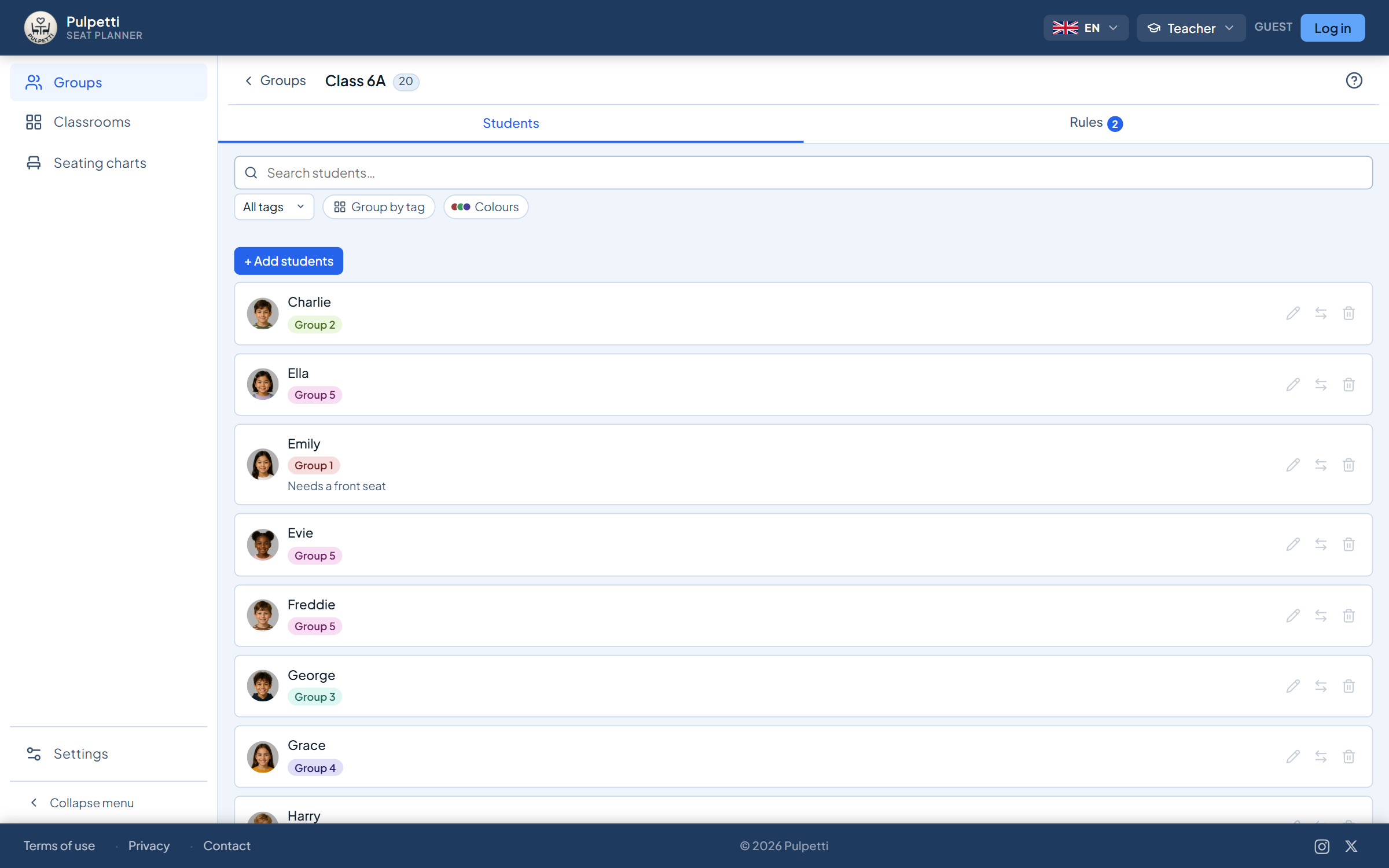
Type the names one by one or paste the whole class at once: select the name column in your list, copy and paste. Besides a name, a student can have a tag and a note — the tag groups and colors the names on the chart, the note is a free remark such as "needs a seat at the front".
Start from a ready-made template or drag the desks into place one at a time. Besides desks there are round and rectangular group tables, a teacher's desk and single chairs — plus more than ten other objects: the board, windows, a door, walls, pillars and a fire exit. No tape measure is needed, but you can have an exact plan by entering the dimensions of the room and the desks.
Eleven rule types, with the ones that matter in a classroom at the top: who must not sit side by side or at the same table, who works well together, who always sits in the front row and who sits at the back. Then either move the names onto the desks yourself, or press "Draw all" and fine-tune the rest by hand.
The classroom chart with names for a substitute teacher or for your own folder, the name list alphabetically or by table. In presentation mode the chart fills the screen for the classroom wall — and the view can be turned around so that it matches the direction the students see it from.
Try it yourself and see how easy it is to make a seating chart. Try it free
This is the difference from paper and from a spreadsheet. When you record a rule, it is not a mark in one layout but something you know about your group. It travels into every layout you make for that group — including next term's.
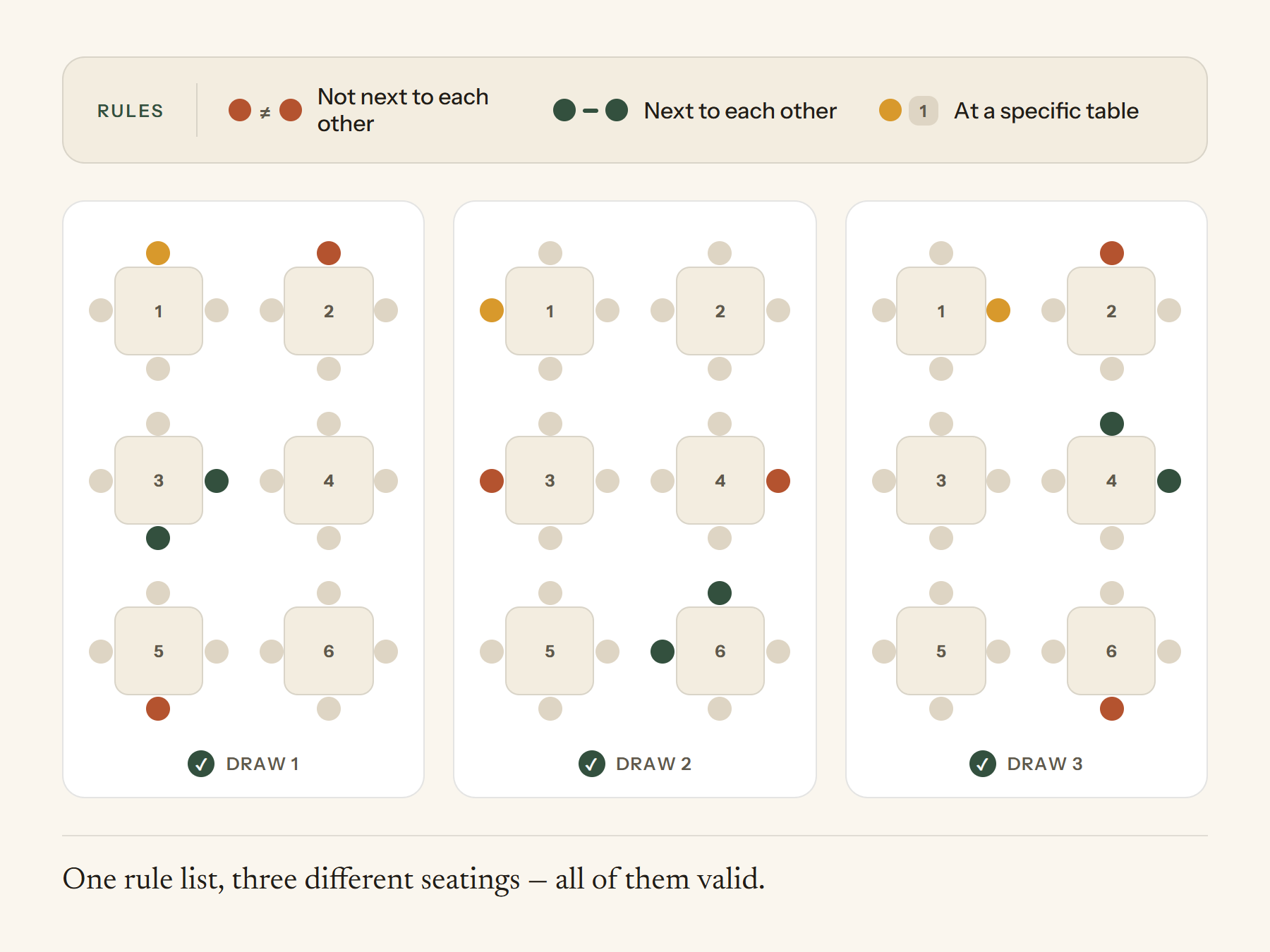
When you mark "these two not side by side", the app keeps it. Draw the layout again as many times as you like — the rule applies every time.
Support needs, hearing or eyesight, concentration: the reason is yours to know, but the seat stays without your having to remember it each time. "Always in the front row" and "Always in the back row" are rule types of their own.
Below the chart there is a plain-language note about every broken rule, naming names. It does not stop you saving, it just makes sure nothing slips through.
Some seats are decided in advance. Locked seats stay put when you draw the rest again.
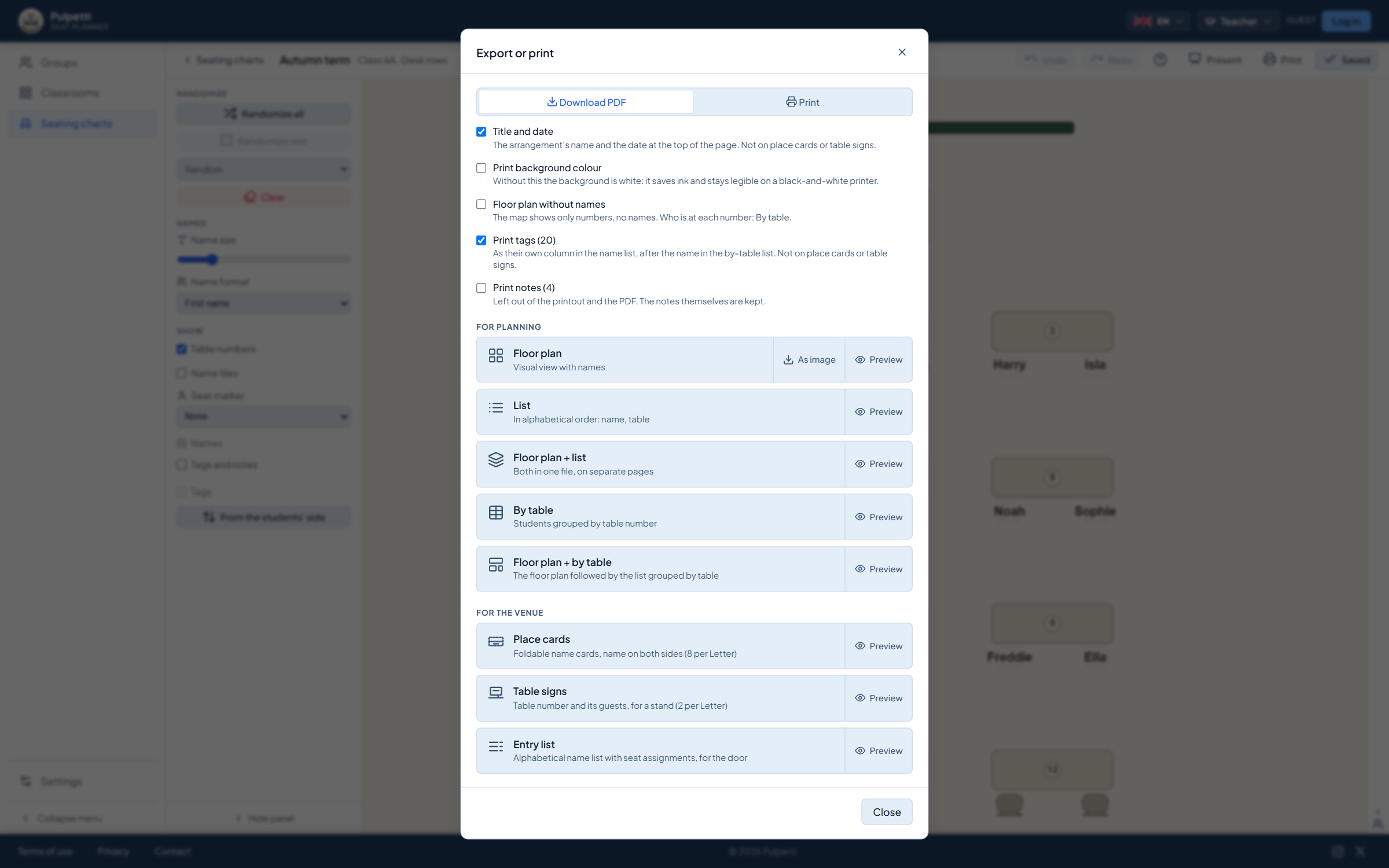
The same seating chart produces the papers a classroom actually needs.
A floor plan with a name on every desk. Your own copy for the desk when the group is new — and the same sheet works for a substitute teacher as it is.
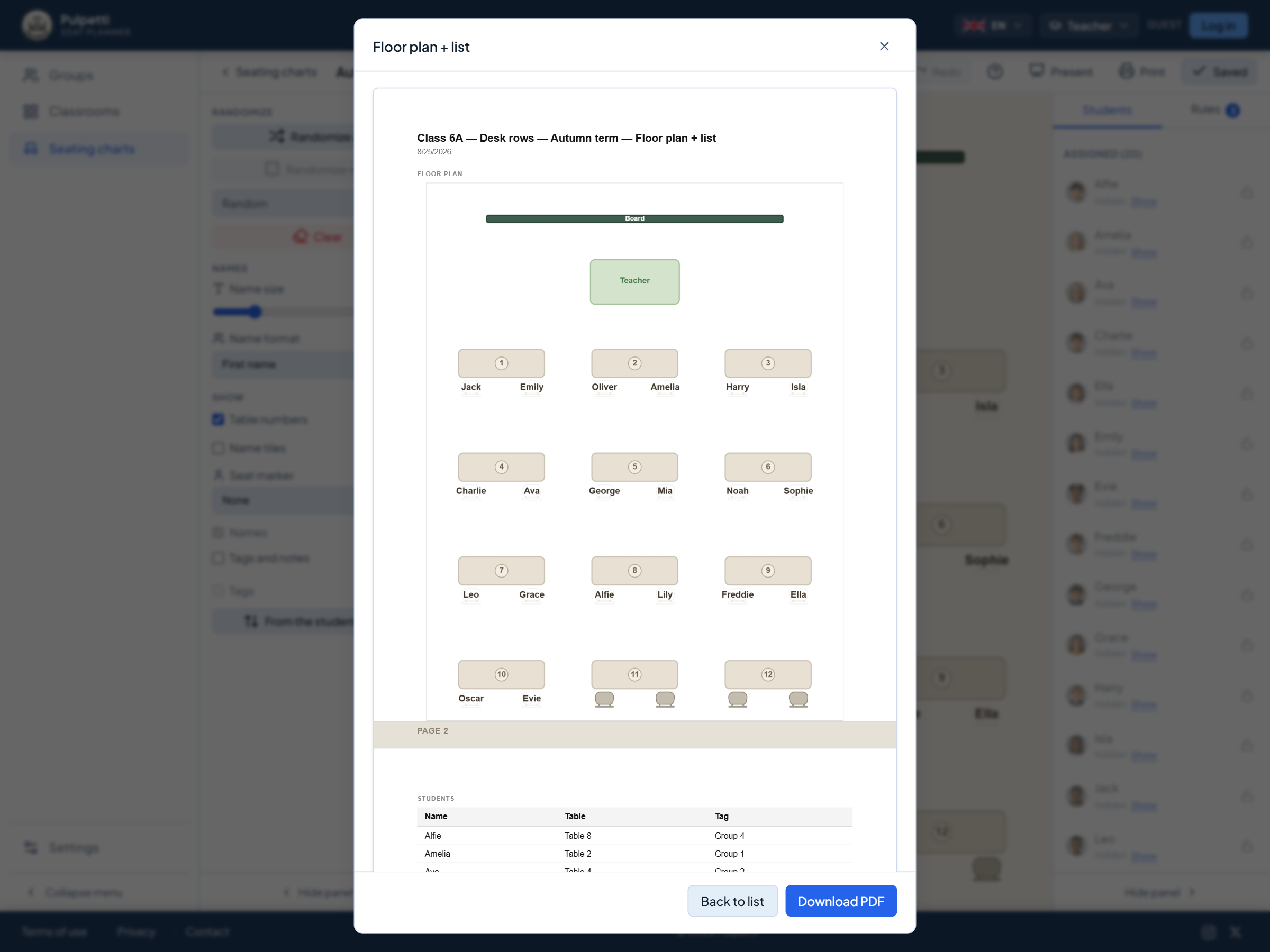
Alphabetically by surname or grouped by table. Tags and notes come along only if you choose them.
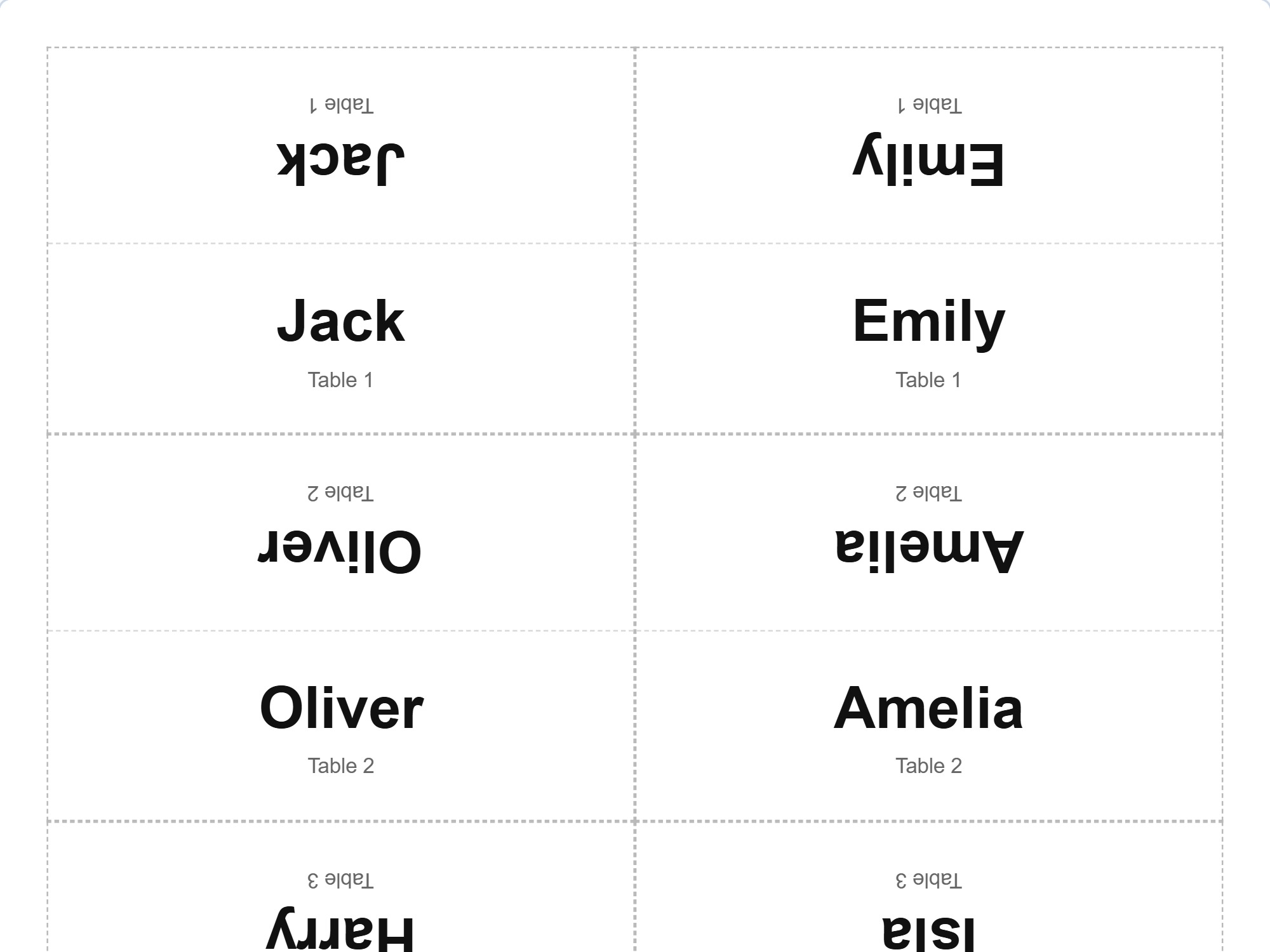
Folded cards with the name on both sides. In the first weeks with a new class the names can be read straight off the desk, and on an exam day everyone finds their own seat without being shown.
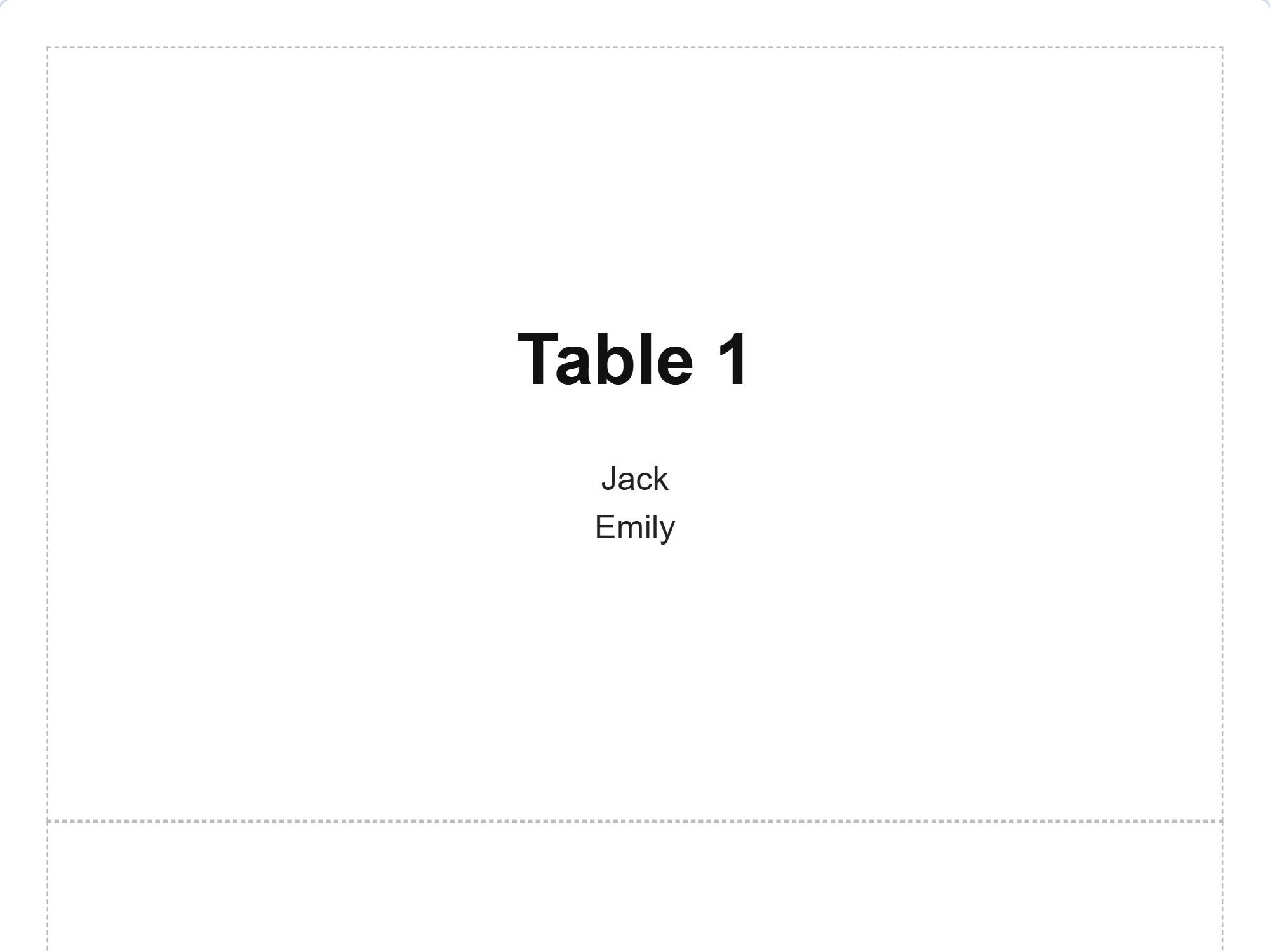
The table number and the students at that table on a standing sign — on a group work day everyone finds their table themselves.
You see a preview of every printout before printing. The same is available as a PDF, so the chart can be sent on or printed on the staff room computer without the file changing. Next term's starting point does not have to be found in a pile of paper: seating charts stay in the app, and an old one gives you a copy to build the new one from.
Paste your own class list and try printing it. Try it free
Copy the classroom and pull the desks apart in the copy — the everyday room is left untouched. Make it its own seating chart for the same group: the same rules apply, so anyone who doesn't sit together day to day doesn't sit together in the exam either. When the exam week comes you open a finished chart instead of making one in a hurry.
The chart is first of all your own tool: it shows you at a glance what the class looks like, and the names are right even before you remember them all. When there is a substitute teacher, the same chart tells them what they could not know from anywhere else: who sits where.
Keep the classroom in rows and make a copy of it with the desks gathered into group tables. Both exist at the same time, and you switch working methods by opening the other chart. The grouping can be drawn again for every task, and the rules make sure the same set does not always end up together.
While the names are still being learned, the chart on screen is a memory aid. Name cards on the desks help both you and the students through the first weeks, and the layout can be changed as you learn who works well together.
From drawing the room to the finished printout — in one tool.
These are minors, and it shows in what the app asks for. Everything below is built in, not settings you would have to go looking for.
A paper chart survives one version. A spreadsheet knows names but not the classroom. Neither remembers the rules for you or tells you when one of them breaks.
| Pen and paper | Spreadsheet | Pulpetti | |
|---|---|---|---|
| Rules survive from one layout to the next | – | – | ✓ |
| Seating that follows the rules | – | – | ✓ |
| A note when a rule is broken | – | – | ✓ |
| Front row and back row as rules of their own | – | – | ✓ |
| A classroom plan to scale | laborious | – | ✓ |
| The same room in rows and as group tables | – | laborious | ✓ |
| Several layouts for the same group | – | partly | ✓ |
| A classroom chart with names as a printout | laborious | – | ✓ |
Not for a whole class: the free plan allows up to 15 students, one group, one classroom and one seating chart. That is enough for trying it out and for a small group, but an ordinary class is bigger. The limits are counted per setting.
No. You can open the app straight in your browser and try it with the ready-made example class or with your own names. Without signing in, your data stays in your own browser.
Yes, on the paid plans. A seating chart is always a combination of a group and a classroom, and the rules belong to the group — so the same set of rules applies to every layout. If the desks stay where they are, you can make as many layouts in the same classroom as you like and switch between them from the list. If the furniture changes — desks apart for an exam or gathered into group tables — copy the classroom and edit the copy: the original layout and its charts stay untouched.
With the rule type "Always in the front row". It is the student's rule rather than a mark on one chart, so the seat stays even when you draw the layout again. The counterpart "Always in the back row" exists in the same way. The reason is not recorded anywhere unless you write it in the note yourself.
It does, if you want it to. One button turns the chart 180 degrees: "From the teacher" draws the room from where you are standing, "From the students" from where they are sitting. The content of the chart does not change, only the direction you look from — which removes the usual confusion of left and right crossing over.
There is no file import. Names are pasted from the clipboard: select the name column in a spreadsheet or a list, copy and paste — one name per line. The app points out duplicates and removes them in one click.
The app is designed for computers and tablets — drawing the room needs room on the screen. Nothing has to be installed, so no installation rights are needed on the school computer. Touch gestures work on a tablet: pinch to zoom, and a name can be moved with a finger, so moving one student to another desk works mid-lesson too. One thing to note about devices: without signing in, the data is only in the browser where it was made. For the same chart to open on another device, you need cloud storage on a paid plan.
Only what you write yourself: a name, and if you want, a tag and a free note. No dates of birth, no guardian details, and no attendance field at all in school use. Without signing in, the data stays in your own browser; on the paid plans it is in a secure cloud and you can export or delete it yourself.
Before you draw the classroom, it is worth deciding what you want the seats to do. We collected what the research says about rows, group tables and how often seats should change into a guide of its own.
Read the guide: how to make a classroom seating chart →A class is bigger than the free plan's 15 people, so for teaching the subscription is the right choice — the one-off purchase suits two groups and two charts.
€0
Permanent, not a trial
€4.99
One payment, does not renew · valid for 3 months
€2.49/ month
or €27.39 / year (€2.28 / month)
Prices include VAT. Charged in euros. At checkout you can pay in your own currency.
Also available for iPad.


Pulpetti came out of a practical need. My partner is a teacher and needs the seating to help keep the classroom calm. Holding every constraint in your head at once takes time, and next term the work starts over from nothing.
I have organised events myself, so I have seen the same work from the banquet hall side as well. I am a software developer by trade, and I decided to build a program that runs in the browser and keeps the rules between people unchanged from one occasion to the next. If something puzzles you or you want to suggest a new feature, write to me. I hope you like it!
Tomi NevalainenMaker of Pulpetticontact@pulpetti.com
Paste the names, draw the classroom and see what kind of chart comes out. No account needed.
Try it free